
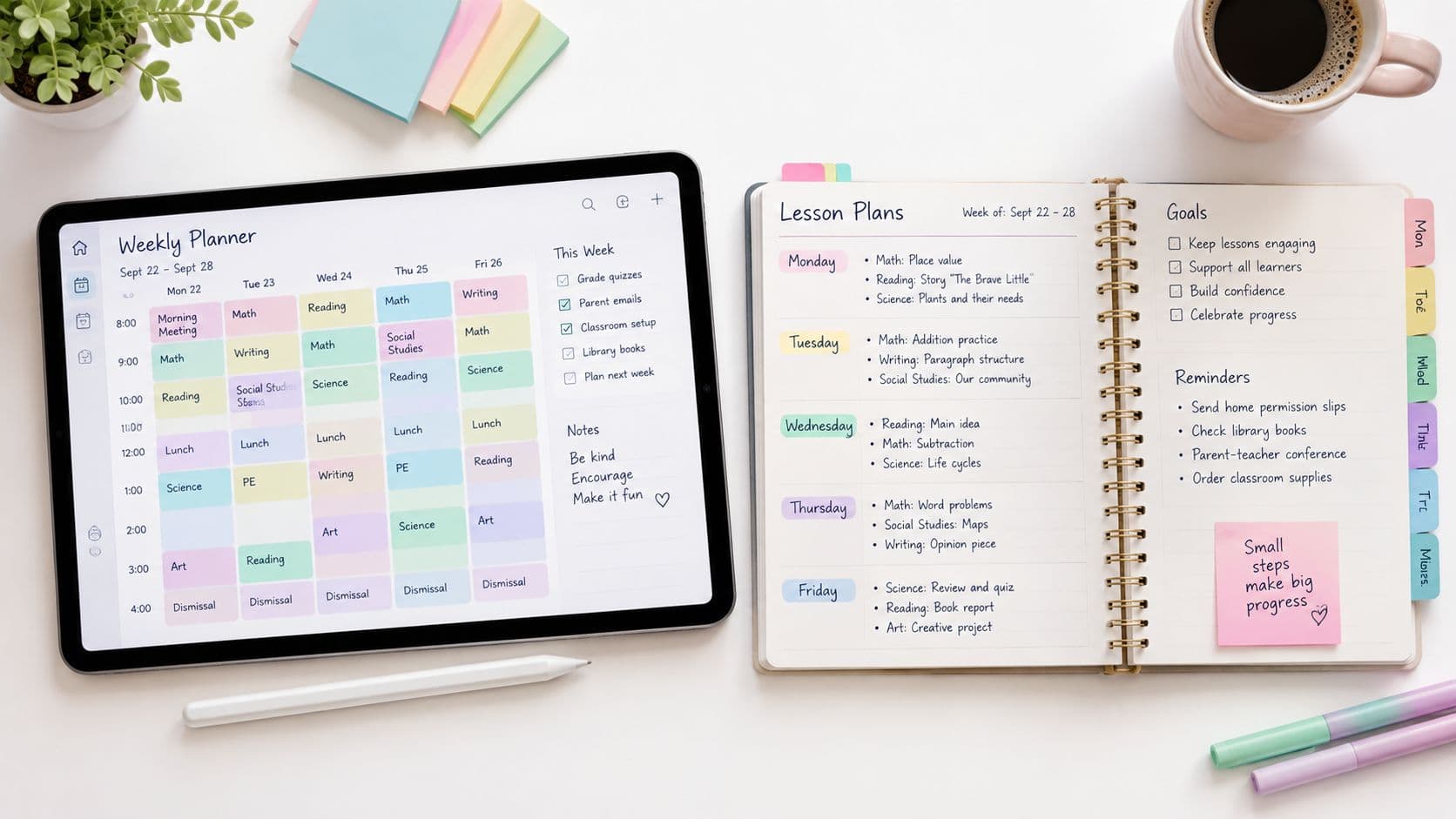
Digital planning is the stronger choice for repeatable sequencing and resource drafting, while paper or printed plans work better for offline classroom use and quick annotation. A midweek disruption usually decides the issue: digital planning can reduce preparation by about 25.3 minutes per week, or roughly 31% in one controlled trial, but only when teachers review and adapt the output.
It's Monday morning, the weekly lessons are ready, and an unexpected assembly has just removed your second period. A paper planner gives you a pen, an eraser, and a clear page. A digital planbook gives you editable lesson order, reusable resources, and a way to move the interrupted sequence without rewriting every later date.
Neither format wins every classroom. The practical answer is usually digital for repeatable planning and paper for resilient classroom use, with a printed daily or weekly view acting as the handoff between them. This comparison follows one interrupted teaching week and looks at editing, access, printing, portability, privacy, review time, and ongoing costs. Teacher Planner is the publisher of this guide, so its inclusion is disclosed, but the decision framework applies to any digital planbook or paper system.
Choosing Between Digital and Paper Teacher Planning
Start with the point in your week that keeps getting interrupted. If you are constantly moving lessons, reusing activities, attaching standards, or hunting for resources, digital planning usually fits better. If you need a page beside you while teaching, one that works without a device, paper is still the easier tool to reach for. A hybrid system uses both instead of forcing one format to do everything.
On Monday morning, the week is mapped out, then an assembly cuts second period. A paper planner gives you a pen, an eraser, and a blank page. A digital planbook lets you move the sequence, reuse materials, and keep later lessons aligned without rewriting the whole week.
That difference matters because digital work is already part of most teachers' routines. A survey reported that 97% of teachers used laptop computers, 83% used them daily, and 71% used education technology daily for planning and preparation. The survey describes general digital work rather than a direct planner comparison, but it helps explain why a browser-based planbook often feels familiar. The AFT teacher and parent technology survey also reported that 85% used learning-management systems occasionally or daily.
The workload makes small time savings worth caring about. OECD TALIS data cited in this teacher-training analysis put teachers' average working time at 38.8 hours per week, including 6.5 hours for planning and lesson preparation, around 17% of total working time. That does not mean a digital planner will erase those hours. It means repeated copying, searching, and reordering deserve attention.
| Planning need | Digital planner | Paper planner | Practical choice |
|---|---|---|---|
| Move a sequence after an assembly | Strong, if lessons are structured | Manual rewriting | Digital |
| Write quick notes during instruction | Less immediate | Fast and distraction-free | Paper |
| Reuse a worksheet or lesson structure | Easy to copy and revise | Requires finding or rewriting pages | Digital |
| Teach during an outage or without a device | Depends on access and battery | Works immediately | Paper or printed digital |
| Share a clear cover plan | Can copy, download, or print | Requires scanning or photocopying | Digital, then print |
| Protect sensitive information | Requires account and prompt discipline | Requires physical control | Whichever has tighter handling |
| Keep a low-cost continuity backup | May involve subscriptions, devices, and printing | Requires paper and storage | Hybrid |
A controlled trial found that teachers using ChatGPT for lesson preparation reduced lesson and resource preparation time by approximately 25.3 minutes per week, about a 31% reduction in lesson-planning time. That is evidence for AI-assisted drafting, not unattended automation, and the teachers still had to check facts, align activities with standards, adapt language, and remove identifying student information. The ERIC record for the trial gives the study behind that benchmark.
Practical rule: Store what you will need to revise, search, or reuse digitally. Carry what you will need to annotate, display, or use when access fails on paper.
How Lesson Planning Fits Into Instructional Planning
Lesson planning is the weekly operating layer of instructional planning. A unit establishes the destination and sequence. Standards describe the required learning. Assessments show whether students reached the objective. The daily lesson turns that larger design into activities, materials, explanations, and checks for understanding that a class can complete.
Teachers therefore plan at several time horizons. A term-level unit timeline might show how ecosystems, energy transfer, and human impact develop across a sequence. A weekly view places those lessons around assemblies, meetings, intervention blocks, and specialist classes. A daily page holds the details that matter during instruction, such as the opening task, modelled example, materials, differentiation, and exit question.
A useful lesson record contains more than a title. It should answer five questions:
- What should students learn? State the objective in language students can understand.
- What will they do? List the explanation, practice, discussion, investigation, or application.
- What do they need? Record slides, texts, equipment, worksheets, links, or printed copies.
- How will you check progress? Name the question, observation, response, or short task.
- What changes next time? Capture the adjustment while the lesson is still fresh.
The format should follow the planning horizon. Digital storage is useful for a unit sequence because teachers can retrieve previous lessons, preserve standards links, and revise an upcoming block without recopying every entry. Paper works well for the classroom-facing layer because a teacher can circle a misconception, note a student question, or write “reteach vocabulary” in the margin without opening a device.
A practical outline might look like this:
- Unit: Ecosystems and interdependence
- Standard or intended learning: Explain how changes to one part of an ecosystem affect other parts
- Monday lesson: Food chains and energy flow
- Tuesday lesson: Population relationships
- Wednesday lesson: Backup lesson after a disruption
- Check for understanding: Annotated food-web explanation
- Next adjustment: Revisit decomposers with a concrete example
The lesson plan outline example can help turn that structure into a repeatable planning page. The important distinction is that a planbook stores and orders the work, while instructional planning decides why the work belongs in that order.
One Interrupted Teaching Week in Digital and Paper Formats
Consider a middle-school science teacher with a fixed weekly timetable, a unit already underway, and an assembly scheduled without much warning. On Sunday, both formats can look equally organised. The difference appears when the week stops following the original plan.
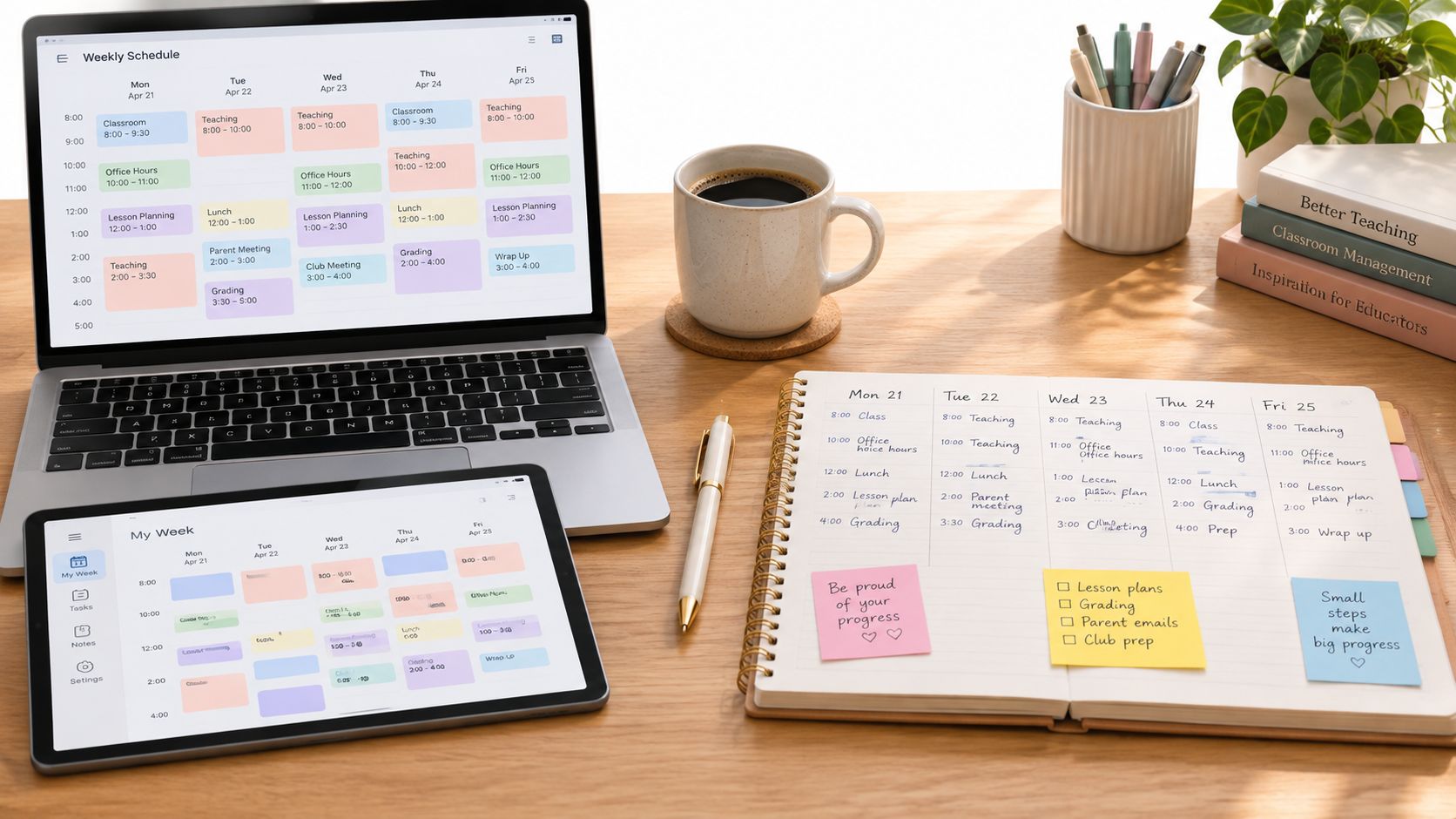
Monday starts cleanly
In a digital planbook, the teacher enters or imports the fixed timetable, reviews the generated entries, and adds the unit sequence. The day view shows the lesson objective, materials, and attached resources. A paper planner is quicker for handwriting a last-minute note and doesn't require a login, but a recurring timetable may need to be copied across pages or written into a new book.
Both formats handle Monday well. The digital version is easier to search later. The paper version is easier to leave open on a desk without another notification competing for attention.
Wednesday exposes the difference
The assembly removes the lesson on food webs. On paper, the teacher crosses out the date, writes “assembly,” and moves the food-web lesson to the next available slot. If later lessons are already written across several pages, each affected date needs checking. A missed rewrite can leave the plan showing the wrong activity or create a broken sequence.
In a structured digital planbook, Bump Forward moves the affected lesson and keeps subsequent lessons in sequence. That doesn't decide whether the class is ready for the next concept, so the teacher still reviews the result. It does reduce duplicate editing, especially when the disruption affects several linked lessons.
Digital formats excel at revision and retrieval. Paper formats excel at low-friction annotation and offline reliability.
The weekly planner guide is useful for teachers who want to see how recurring weekly information can sit alongside individual lesson details.
Thursday brings an access test
The teacher takes a tablet to a different room, but the Wi-Fi is unreliable. A browser-based planbook is convenient when the device and connection work, yet access, charging, school filtering, and account availability remain part of the workflow. A printed day view avoids those dependencies. So does a locally saved PDF, provided it was prepared before leaving the desk.
Portability works differently in each format. Digital plans can be opened on a permitted computer or tablet and copied for a substitute. Paper can go to a field trip, cover supervisor, or classroom table without requiring a device. It can also be lost, photocopied, or left where students can see it.
Privacy needs deliberate handling in both systems. Digital plans may contain student names, accommodations, behaviour notes, or assessment information, and those details shouldn't be placed into an AI prompt unless school policy permits it. Paper plans aren't automatically private either. Keep sensitive records in the school-approved system, use neutral labels such as “Student A” in planning drafts, and remove unnecessary details from printed classroom copies.
Friday closes the loop
The teacher writes “students confuse habitat and niche” on the printed page during the lesson. Later, that note is added to the digital plan and used to revise the next activity. The paper copy captures the observation with almost no friction. The digital record makes the adjustment searchable and keeps it with the sequence.
That is the hidden strength of hybrid planning. It treats paper as a continuity and observation layer, not as a failed digital system, while using digital storage for the changes that would otherwise create repetitive work.
Digital Versus Paper Decision Criteria for Teachers
A planning format earns its place during an interrupted teaching week. On Monday, an assembly moves the first lesson. On Wednesday, a room change leaves the printed timetable outdated. By Friday, the useful format is the one that records the change, keeps classroom notes usable, and reduces the time needed to prepare the following week.
How often does the timetable change? Frequent assemblies, cancellations, cover swaps, and room changes favour editable sequencing. Digital entries can be reordered quickly. A stable timetable with short handwritten notes may make paper the simpler choice.
Can you reliably access a suitable device? A laptop used every day supports browser-based planning. A shared device, weak internet connection, blocked service, or charging problem can interrupt preparation. Printed pages or locally saved copies provide a workable fallback when a lesson changes between classrooms.
How much do you print? If you hand a daily plan to a substitute or keep a paper copy beside you, check whether the digital system produces readable day, week, month, or outline views. Printing still requires preparation, paper, and storage, but a focused copy can be easier to use during a disrupted day.
What information does the plan contain? Generic objectives and materials are easier to manage than names, medical details, disability information, or safeguarding notes. Keep sensitive records in the school-approved system, regardless of format. A paper page left on a desk and an open digital screen create different privacy risks, so classroom copies should contain only the details required for instruction.
Will you reuse the work? Digital entries make copying, searching, and revising easier after Friday's review. Paper can suit teachers who think through handwriting, though reuse often means manual transcription, scanning, or storing physical pages.
| Planning Situation | Recommended Format | Why It Fits |
|---|---|---|
| Lessons often move after events or cancellations | Digital | Ordered sequences can be edited without rewriting later entries |
| Devices or internet are unreliable | Hybrid | Digital storage keeps the master plan, while printed pages provide continuity |
| You annotate heavily while teaching | Paper or hybrid | A printed page supports quick marks, arrows, and reminders |
| You reuse units, worksheets, and standards links | Digital | Structured records are easier to duplicate, search, and update |
| You share plans with a substitute | Hybrid | Prepare digitally, then print a focused cover plan |
| Plans include sensitive student information | Controlled hybrid | Keep identifying records in an approved system and print only classroom requirements |
| Your timetable rarely changes and you prefer handwriting | Paper | A physical workflow may involve fewer navigation costs |
Use this guide to choose a format; software comparisons require separate criteria. Teacher Planner publishes an online teacher planner comparison for evaluating planning applications. That comparison serves a different purpose from deciding whether your weekly workflow should be digital, paper, or hybrid.
Hybrid Planning Workflow With a Worked Example
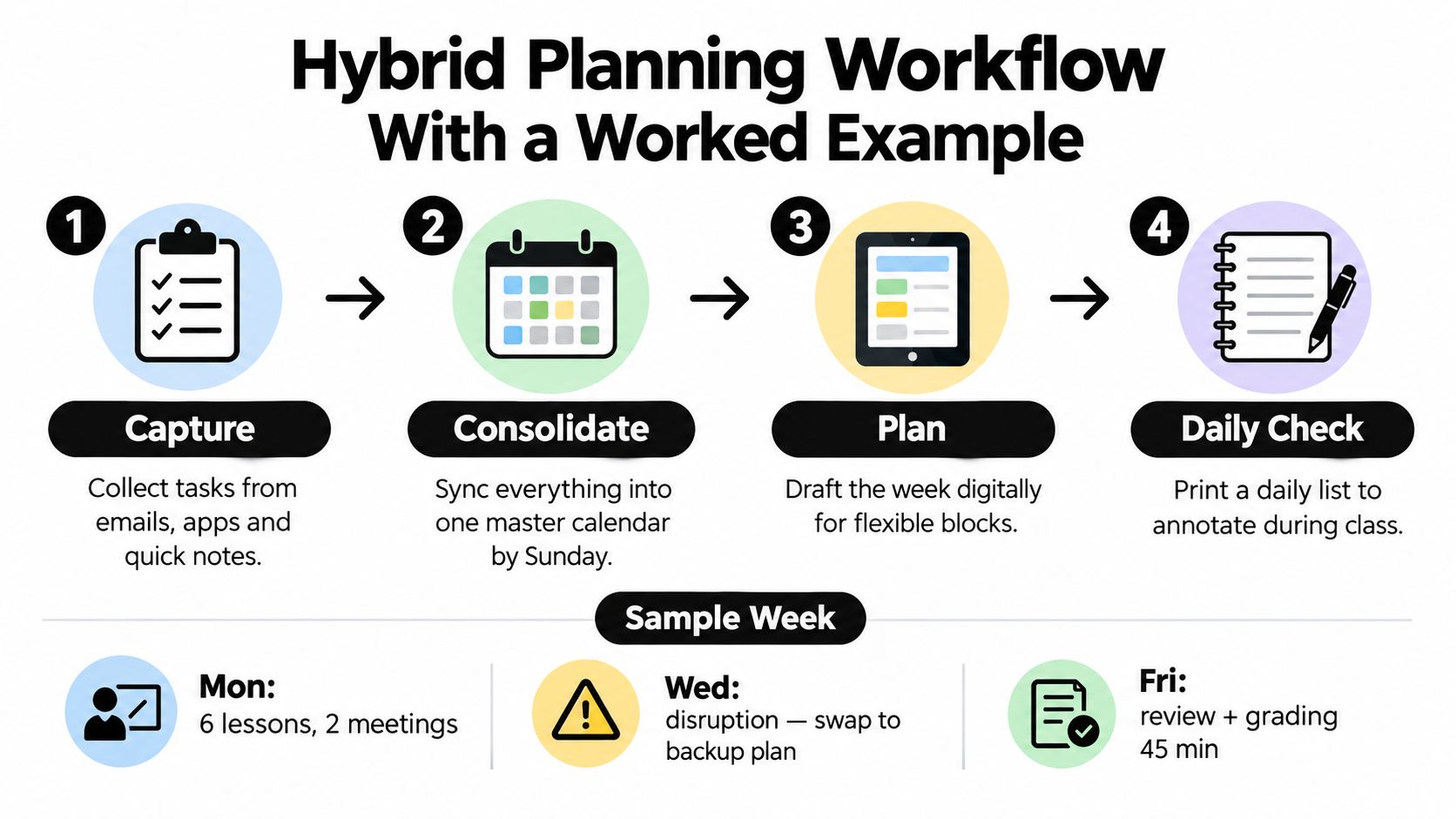
A hybrid routine works when each format has a defined job. Don't keep two complete plans that drift apart. Maintain one digital master, use paper for classroom interaction, and update the master after instruction.
A workable weekly routine
-
Capture: Collect timetable changes, emails, meeting obligations, resource requests, and quick ideas in one temporary place. Don't let a sticky note become the only record of a cancelled lesson.
-
Consolidate: Enter or import the fixed weekly timetable, then review every class, day, and time before saving. Timetable import can accept a photo or PDF of a fixed weekly grid or list, but it still needs user review. It isn't a substitute for checking your actual schedule.
-
Plan: Draft the unit sequence and weekly lessons digitally. Add the objective, activities, materials, check for understanding, and expected adjustment. Generate a worksheet or quiz when it saves repeatable drafting time, but treat the result as an editable draft.
-
Daily check: Print only the day or week view you need. During teaching, annotate the printed copy. After class, transfer meaningful changes to the digital master and discard unnecessary copies securely.
Digital planbook printing templates are separate from the print action inside an AI generator. A planbook template controls how the schedule appears in a day, week, month, or outline view. An AI tool's own print option applies to the generated lesson, worksheet, quiz, rewritten text, or writing feedback.
Worked example for Grade 6 science
A Grade 6 science teacher needs a five-question quiz on ecosystems. The teacher enters the grade, topic, objective, lesson length, and learner needs into a Multiple Choice Quiz Generator. The first draft is not accepted automatically.
The teacher checks each factual claim and answer, confirms that every distractor is plausible but unambiguous, and verifies that the questions assess the intended standard rather than vocabulary alone. Next, the teacher adjusts reading level, checks accessibility, removes any unnecessary personal information, and saves the approved resource. The quiz can then be copied, downloaded as text, or printed through the available tool action.
The paper copy becomes the classroom checkpoint. The teacher marks which question caused confusion and writes a note beside the next lesson. The digital plan remains the reusable source for a revised quiz, while the printed page records the professional judgement made during instruction.
A compact template is:
- Objective:
- Activities:
- Materials:
- AI draft to review:
- Accuracy and curriculum check:
- Printed classroom note:
- Digital update after teaching:
This workflow reduces repeated production without hiding the review work that makes the material safe and instructionally appropriate.
Testing a Planning Format Over One Unit
A format decision should be tested against your actual teaching rather than made from a feature list. Choose one unit with a clear sequence and use digital, paper, or hybrid planning consistently enough to observe the workflow. Keep the test small and practical.
Record the following after each planning session and lesson:
- Preparation time: Include drafting, reviewing, editing, organising, printing, and sharing.
- Materials missed: Note whether a resource, handout, or device was unavailable when needed.
- Schedule changes: Record whether each cancellation or move was updated everywhere it needed to be.
- Instructional adjustments: Capture whether your notes led to a clear change in the next lesson.
- Access problems: Log outages, charging issues, blocked tools, login problems, or misplaced pages.
- Privacy checks: Note whether sensitive information was kept out of prompts and classroom-facing copies.
The Education Endowment Foundation recommends deciding how technology will improve teaching and learning before introducing it, then reinforcing the initial training. Its digital technology guidance supports a useful test: compare the same planning task in each format and look for an instructional benefit, not just a replacement for paper.
AI requires a wider time calculation. A generated lesson may take little time to draft, yet checking factual accuracy, curriculum alignment, reading level, cultural fit, accessibility, bias, and privacy can add work. Measure drafting plus review, not generation alone. UNESCO's guidance on generative AI in education stresses teacher guidance, training, and critical assessment of accuracy and validity.
At the end of the unit, ask:
- Did the format keep the sequence accurate after changes?
- Could you find the materials when you needed them?
- Did classroom notes become useful next steps?
- Did review and printing take longer than expected?
- Could you continue during an outage or policy change?
- Did the format improve teaching, or only change where the work happened?
Keep the system that supports better decisions with less avoidable repetition. Adjust or abandon the rest.
Format Choice Versus Tool Choice for Teacher Planners
An interrupted teaching week exposes the difference between format and tool. A room change, a cancelled lesson, or a timetable adjustment can make editable sequencing valuable, while a paper notebook may remain faster during a corridor conversation or an outage. Decide first which demands your week places on planning. Then compare planbooks, document tools, note-taking apps, and AI generators.
A browser-based planbook can organise schedules, lessons, units, standards, and ordered sequences in one place. It may include day, week, month, and outline views, timetable import from reviewed photos or PDFs, and tools for moving affected lessons forward. Those features reduce schedule-maintenance work, but they do not cover every school-administration task.
Teacher Planner combines a browser-based planbook with a Lesson Plan Generator, Worksheet Generator, Multiple Choice Quiz Generator, Text Rewriter, and Writing Feedback. AI tools are available across account tiers with generation limits, so payment does not mean unlimited AI use. The Free tier includes one planbook and basic Minimal printing. Pro and Lifetime add planning and printing features. Check current pricing and entitlements before choosing, since product details may change.
During that disrupted week, privacy and review time also matter. Keep sensitive information out of prompts and classroom-facing copies, and allow time to check generated material before using it. Teacher Planner handles planning and material preparation, not grades, submissions, or official records, and AI output remains an editable draft that you save or print yourself.
Teachers comparing software after choosing digital or hybrid planning can use the online teacher planner comparison. A paper notebook, printed daily view, or locally saved PDF may still work best beside the digital master when access or continuity matters.
Teacher Planner offers browser-based schedule and sequence management, reviewed timetable import, printable planning views, and AI tools for drafting lessons, worksheets, quizzes, adapted text, and writing feedback. If those functions fit your interrupted-week workflow, visit Teacher Planner and assess whether digital or hybrid planning suits your daily work.