
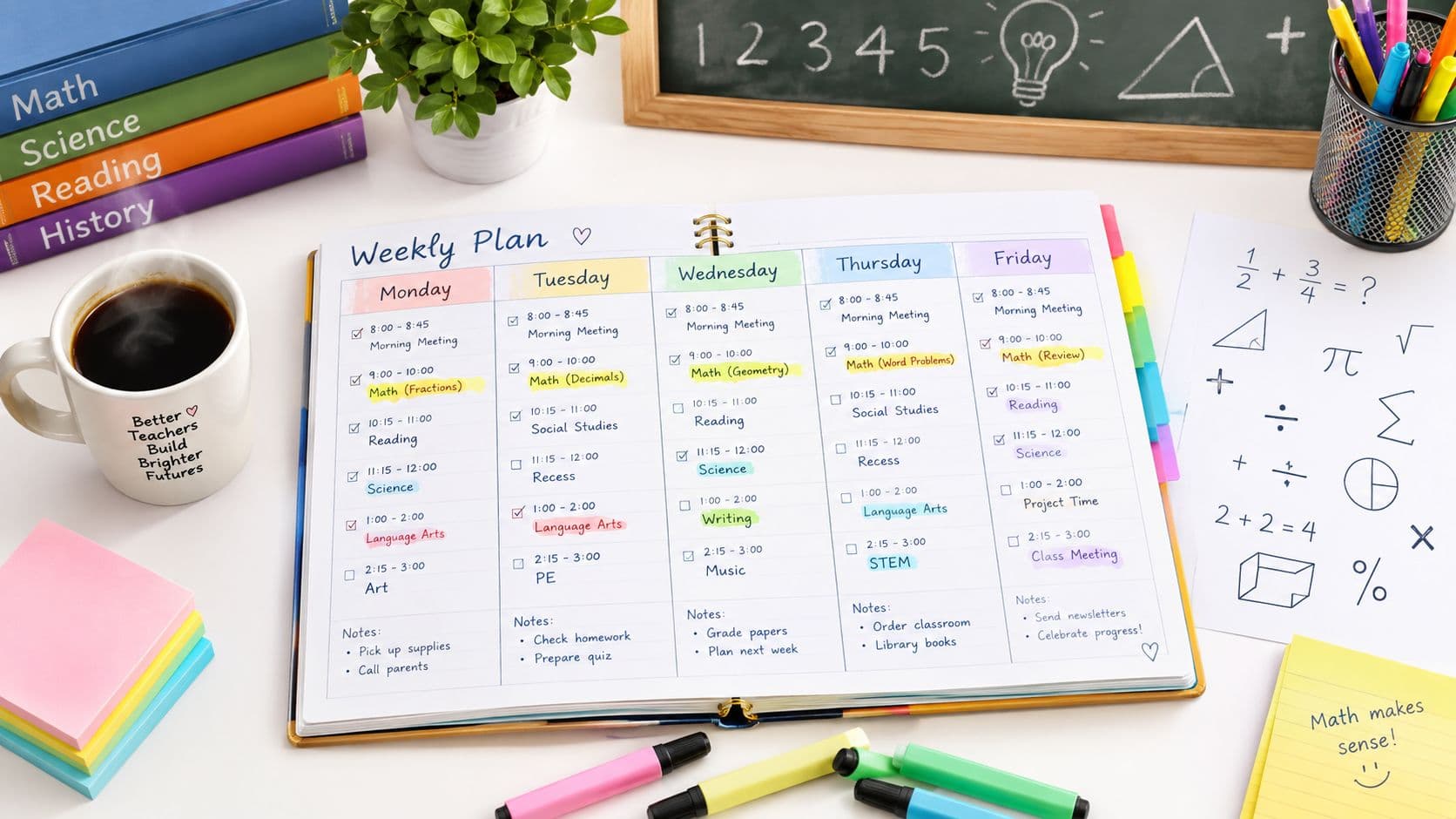
Monday morning, the plan is complete in your browser, but the meeting starts in ten minutes. You need a clean weekly page for your department lead, a substitute, or your own notes during a lab. The task isn't creating another plan. It's turning the filled digital planbook into a readable printable weekly teacher planner without losing revisions or squeezing five days into unreadable boxes.
The reliable workflow is simple: finish and review the digital week, choose the Week view, select the appropriate planbook print template, preview the page, then save a PDF before printing. Keep the original planbook as the editable record. Treat the paper copy as the working version for meetings, substitutions, annotations, and offline teaching.
When a Printed Week Still Beats the Screen
A screen gives you flexibility, but it can also scatter attention across Day, Week, Month, and Outline views. A printed week puts recurring periods, preparation tasks, materials, assessment notes, and last-minute changes on one surface. That matters when you're moving between classrooms or need to mark a change while students are working.
Start with the filled digital week, not a blank printable template. Confirm the dates, recurring timetable entries, lesson titles, and notes. Then select the Week view, choose a weekly planbook print layout, preview it, and save the result as a PDF. Only after the PDF looks right should you send it to the printer.
Practical rule: Print the version you intend to execute, but preserve the digital planbook as the version you intend to revise.
A paper copy remains useful for substitute folders, parent meetings, IEP documentation, and annotations during a lab or field trip. It also gives a substitute a consolidated snapshot without requiring a login or a particular device. The paper isn't replacing the planbook. It gives the planbook a stable, portable output.
Teachers who prefer a mixed system can use the digital planbook for copying recurring lessons and updating sequence, then carry one printed week during instruction. The trade-off is clear. Digital planning is easier to revise. Paper is faster to scan and annotate. The practical choice is often both, with each format doing a different job. For a broader comparison of those roles, see this guide to digital versus paper teacher planning.
What Teacher Planner Actually Prints
The first distinction prevents a common mistake. Planbook printing templates format the lessons already arranged in the planner. An AI tool's own print action formats that tool's generated result. They aren't necessarily the same page, even when both buttons say Print.
Teacher Planner provides Day, Week, Month, and Outline planning views. The Week view is the practical choice for a substitute packet or a weekly meeting because it keeps the timetable and lesson sequence together. The Outline view is better for checking ordered lessons and preserving a unit sequence. Month is useful for broad dates, but it usually doesn't provide enough room for daily instructional detail.
The planbook offers Minimal, Common weekly, and Cards printing templates. Minimal is the basic printing option available on Free. Pro and Lifetime add planning and printing options, including advanced choices such as expanded Cards and additional Common variants. Exact template availability can change, so check the current Teacher Planner pricing before depending on a specific variant.

Choose the output before choosing paper
Use Minimal when you need a straightforward basic copy and don't need the expanded layout choices. Use the Common weekly option when the week needs more visible structure for objectives, materials, differentiation, or assessment notes. Use Cards when separate lesson blocks fit your workflow better than a continuous weekly grid.
AI-generated lesson plans, worksheets, quizzes, rewritten texts, and feedback are editable drafts. You can save results to resources, copy them, download text, or print from the individual AI tool. That tool's print action isn't an automatic insertion into the planbook. Generation limits apply across account tiers, so don't assume a paid tier removes those limits.
Teacher Planner is the publisher of this guide. Verify the current template list and tier entitlements before building a printing routine around a particular layout. If you need to check paper dimensions for printing, do that before changing orientation or margins.
A Filled Five-Day Week From Monday to Friday
A useful weekly print should show instructional decisions, not just subject names. Consider a middle-school U.S. history sequence on the Industrial Revolution. The Week view keeps the recurring periods in order, so the teacher doesn't have to re-enter the timetable each time a new week is printed.

Monday and Tuesday
Monday, causes of the Industrial Revolution
- Objective: Students will identify and explain three conditions that supported industrial growth.
- Timing: Opening, retrieval prompt. Modeling, teacher explanation of geographic and economic conditions. Guided practice, class source sort. Independent work, short cause-and-effect chart. Closure, one written explanation.
- Differentiation: Provide vocabulary cards and sentence frames for multilingual learners.
- Success check: The chart correctly connects a condition to its effect.
Tuesday, factory conditions
- Objective: Students will compare working conditions described in two historical sources.
- Timing: Opening, review Monday's cause-and-effect chart. Modeling, source annotation. Guided practice, one shared paragraph. Independent work, paired comparison. Closure, evidence statement.
- Differentiation: Offer an audio version and a reduced-text source set.
- Success check: Each student cites evidence from both sources.
Tuesday needs a realistic scope. If the block also includes a full lecture, two sources, a debate, and a written response, the printed plan exposes the problem before the class begins.
Wednesday through Friday
Wednesday, primary-source analysis
- Objective: Students will infer working conditions from a primary source.
- Timing: Opening, source vocabulary. Modeling, think-aloud annotation. Guided practice, first paragraph together. Independent work, source analysis. Closure, one supported inference.
- Differentiation: Use a chunked source and an enlarged text version.
- Success check: The inference includes a quoted or paraphrased detail.
Thursday, written response
- Objective: Students will write a claim supported by two historical details.
- Timing: Opening, review claim structure. Modeling, build a response from evidence. Guided practice, outline. Independent work, paragraph draft. Closure, self-check.
- Differentiation: Provide a response frame and allow speech-to-text where approved.
- Success check: The paragraph contains a claim and two relevant details.
Friday, quiz
- Objective: Students will demonstrate understanding of causes, conditions, and source evidence.
- Timing: Opening, vocabulary retrieval. Modeling, explain directions and sample item. Guided practice, clarify evidence-based questions. Independent work, quiz. Closure, confidence rating and collection.
- Differentiation: Apply approved accommodations and provide a quiet setting when required.
- Success check: Quiz responses show whether the student can connect cause, evidence, and consequence.
In a Common weekly layout, each period should follow a predictable reading order. The page can include the objective, time allotment, differentiation, materials, accommodations, and assessment column. That turns the printable from a calendar substitute into a working lesson record. A similar structure can support elementary, high-school, homeschool, and learning-pod schedules. For another weekly planning pattern, see this weekly planner guide for teachers.
Quick Print Review Before You Hit Print
A polished page can still contain weak planning. Run a short Friday audit before printing the next week. The review is about instructional quality, not printer settings.

Use the filled history week as the test case:
- Objective check: “Students will understand factory conditions” is too vague. “Students will compare working conditions in two sources” states an observable outcome.
- Time check: Tuesday's plan must fit the actual class block. If every activity receives equal space, the independent comparison may be unrealistic.
- Differentiation check: “Support as needed” hides the decision. Name the audio source, sentence frame, chunked text, or approved accommodation.
- Assessment check: Choose the evidence before finalizing the activity. Wednesday's inference and Thursday's paragraph make the evidence visible.
- Materials check: List source excerpts, vocabulary cards, response frames, and quiz copies. Save or attach the resources in the planbook so they remain connected to the printed plan.
- Sequence check: Review Outline as well as Week. The outline should still show causes, conditions, analysis, response, and quiz in order.
The template can expose a missing field, but it can't supply missing instructional judgment.
A research-based lesson-plan evaluation framework checks objectives, outcomes, activities, resources, differentiation, and assessment. In one evaluation of 24 lesson plans using the LPAP framework, average quality fell between 75% and 80%, classified as very good, while time constraints were identified as a contributor to weak planning. The lesson-plan evaluation research supports a practical conclusion: use the printable fields as a quality-control loop, not as proof that the lesson is ready.
For teachers preparing family-facing materials, the same principle applies to organization. A clear label system can help when assembling packets, and this resource on label template setup for busy parents offers a useful reference for printed organization.
When the Week Changes Before You Print
Wednesday is cancelled for an assembly. The original history sequence is still sound, so don't delete Wednesday's lesson and rewrite the whole week. Preserve the order, identify the interruption, and move the affected lessons forward.

The recovery sequence is:
- Wednesday's primary-source analysis moves to Thursday.
- Thursday's written response moves to Friday.
- Friday's quiz moves to the next available class period, such as Monday.
- The updated Week view shows the dates students will experience.
- The Outline or unit timeline confirms that no lesson disappeared.
Teacher Planner's Bump Forward function is designed for this kind of sequence change. Use it to move the affected lesson while keeping subsequent lessons in order, then review the dates before printing. The saved planbook remains the working source, while the printed week becomes the execution copy.
A week view and a sequence view serve different audiences. The Week view helps the teacher teach each day. The Outline helps a substitute, department lead, or future planning session understand what was intended and what moved. Printing both can be more useful than printing only the latest grid when a disruption affects several lessons.
Timetable import can reduce repeated entry when the schedule is a fixed weekly grid or a plain list. Import a photo or PDF, review the detected classes, days, and times, and correct anything before saving. It doesn't promise A/B rotation or whole-school timetable import, so recurring assemblies and shortened periods still need careful review. Once the fixed entries are correct, they can support later print cycles. This lesson rescheduling workflow provides a useful model for keeping the sequence intact.
Print Checklist and Troubleshooting
Use this checklist before printing or saving the PDF:
- View: Select Week for a weekly packet, not Day unless you intentionally need separate daily pages.
- Orientation: Choose portrait or landscape according to the selected template and the number of visible columns.
- Margins: Preview the full page and check that no lesson field reaches the printable edge.
- Notes: Include notes columns when the substitute or meeting audience needs them. Hide them when they create cramped text.
- PDF: Save a PDF for a substitute folder, email attachment, or shared drive before making paper copies.
- Order: Confirm recurring periods appear in the expected left-to-right or top-to-bottom order.
Troubleshoot inside the planbook first. Changing printer-dialog settings may hide the symptom without correcting the underlying layout.
| Symptom | Likely Cause | Fix in the Planbook |
|---|---|---|
| Columns are cut off | Margins or a wide template don't fit the selected page | Choose a suitable print template, adjust the planbook's layout options, preview again, and then print |
| A period is missing | Timetable import was saved before the detected schedule was reviewed | Return to the timetable, restore the missing entry, save the corrected schedule, and regenerate the Week view |
| Content appears twice | Week view and a separate Day view were both included | Select only the intended view and create one consolidated PDF |
Minimal basic printing is the practical Free option. Pro and Lifetime add advanced planning and printing options, including additional Common weekly and Cards choices. Check the current tier details before choosing a template for a recurring packet.
If a schedule or image arrives in an incompatible format, convert it before attaching it to your records. For example, this tool can turn HEIC into PDF, which may make a file easier to store with other planning documents. The conversion doesn't replace reviewing the lesson content or the timetable.
Building a Print Habit That Sticks
Printing works when it has a fixed place in the planning cycle. Use the Friday audit to review the next week, update the digital planbook, generate one printable PDF for the substitute folder, and keep a second Week copy at your desk. The saved PDF provides a stable record, while the planbook remains editable when an assembly, absence, or lesson delay changes the schedule.
Keep the workflow narrow. Don't print every available view by default. A practical packet might contain the updated Week view for daily execution and the Outline view when sequence matters for a substitute or department meeting. Month belongs in the planning system when you need broad dates, not automatically in every weekly handout.
AI tools can fit into this routine, but they shouldn't bypass teacher review. Generate a draft lesson, worksheet, quiz, rewritten text, or feedback, then check factual accuracy, reading level, accessibility, cultural fit, assessment validity, and the removal of personal information. Save the approved resource, connect it to the appropriate lesson, and print from the planbook view when the weekly packet needs to show it. Don't assume an AI draft inserts or synchronizes automatically with the planbook.
Teacher Planner offers a browser-based planbook with Day, Week, Month, Unit Timeline, and Outline views, plus timetable import, Bump Forward, and AI drafting tools. Free includes one planbook and basic Minimal printing. Pro and Lifetime add planning and printing options, but current entitlements should be checked on the pricing page. You can also compare the service with other online teacher planner options before choosing a workflow.
The smallest useful next step takes only a few minutes: open the current Week view, run the six-point Friday audit, save the revised week as a PDF, and print the Common weekly template if that option is available in your account.
Teacher Planner keeps your timetable, lessons, sequence, and printable views together in a browser-based planbook, with separate AI tools for editable drafts of classroom materials. Visit Teacher Planner to open your current week, review the print options available to your tier, and create a clean PDF for your next meeting or substitute folder.