
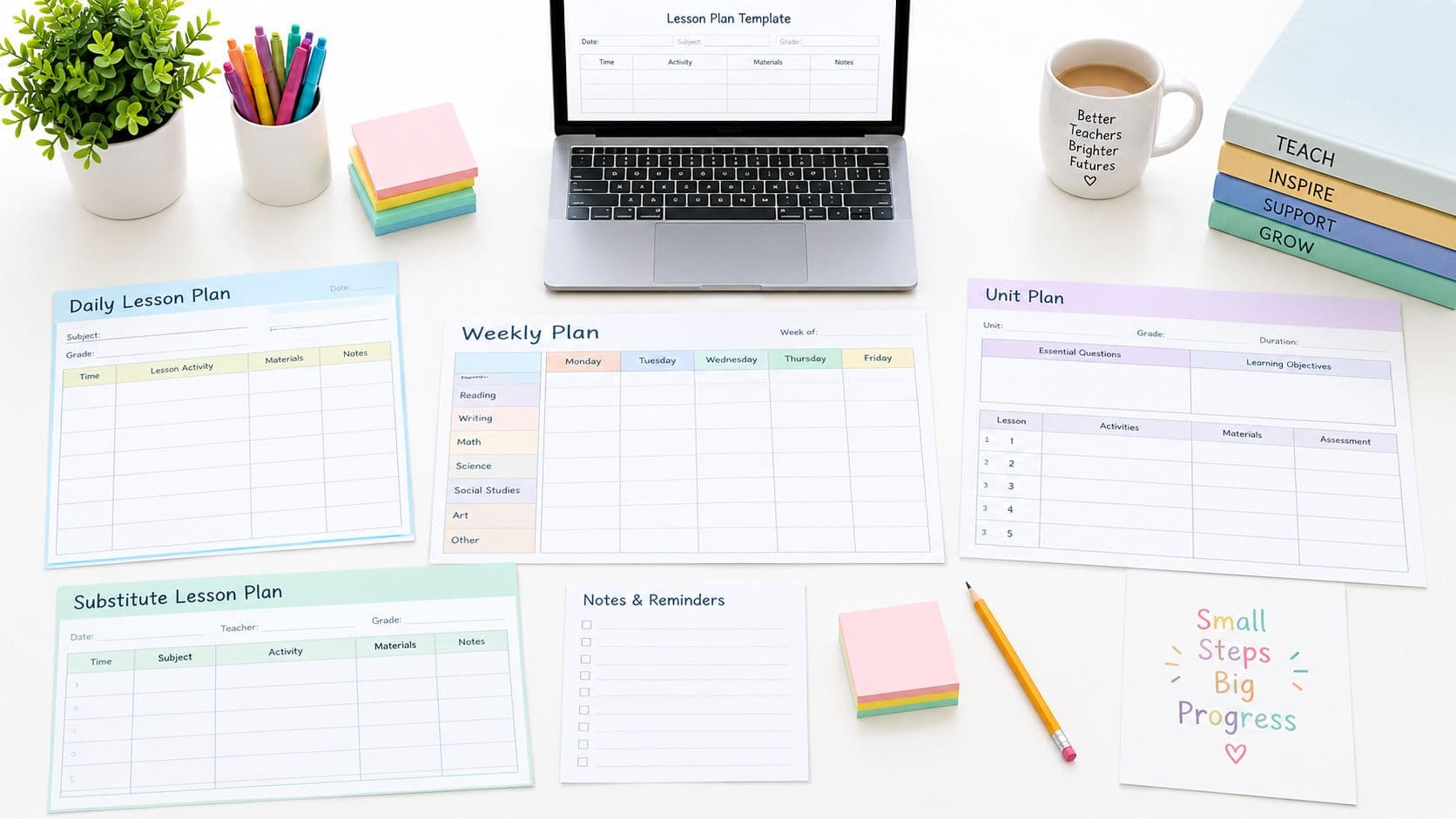
When a lesson is due tomorrow, the best template isn't necessarily the prettiest one. It's the one that helps you decide what students should learn, how they'll practice, what evidence you'll collect, and what you'll change if the lesson runs differently than planned. A single lesson-content template should support those decisions without forcing you to fill out fields that don't affect instruction.
This list focuses on real K–12 planning jobs. You'll find tools for writing a subject-specific lesson, preparing a substitute packet, reusing a unit after a cancellation, designing a polished printable, and managing a full teaching schedule. The resources differ in their strengths: some organize plans, some draft content, some provide classroom materials, and some do all their work inside a flexible design or database system.
For a basic structure, use this lesson plan outline example as a starting point. For schedule-aware planning and editable drafts, Teacher Planner combines a browser-based planbook with lesson, worksheet, quiz, text-rewriting, and writing-feedback tools. Choose based on the fields you need, the subject you're teaching, how often your timetable changes, whether you need a printable plan, and how much setup you're willing to do.
1. Teacher Planner
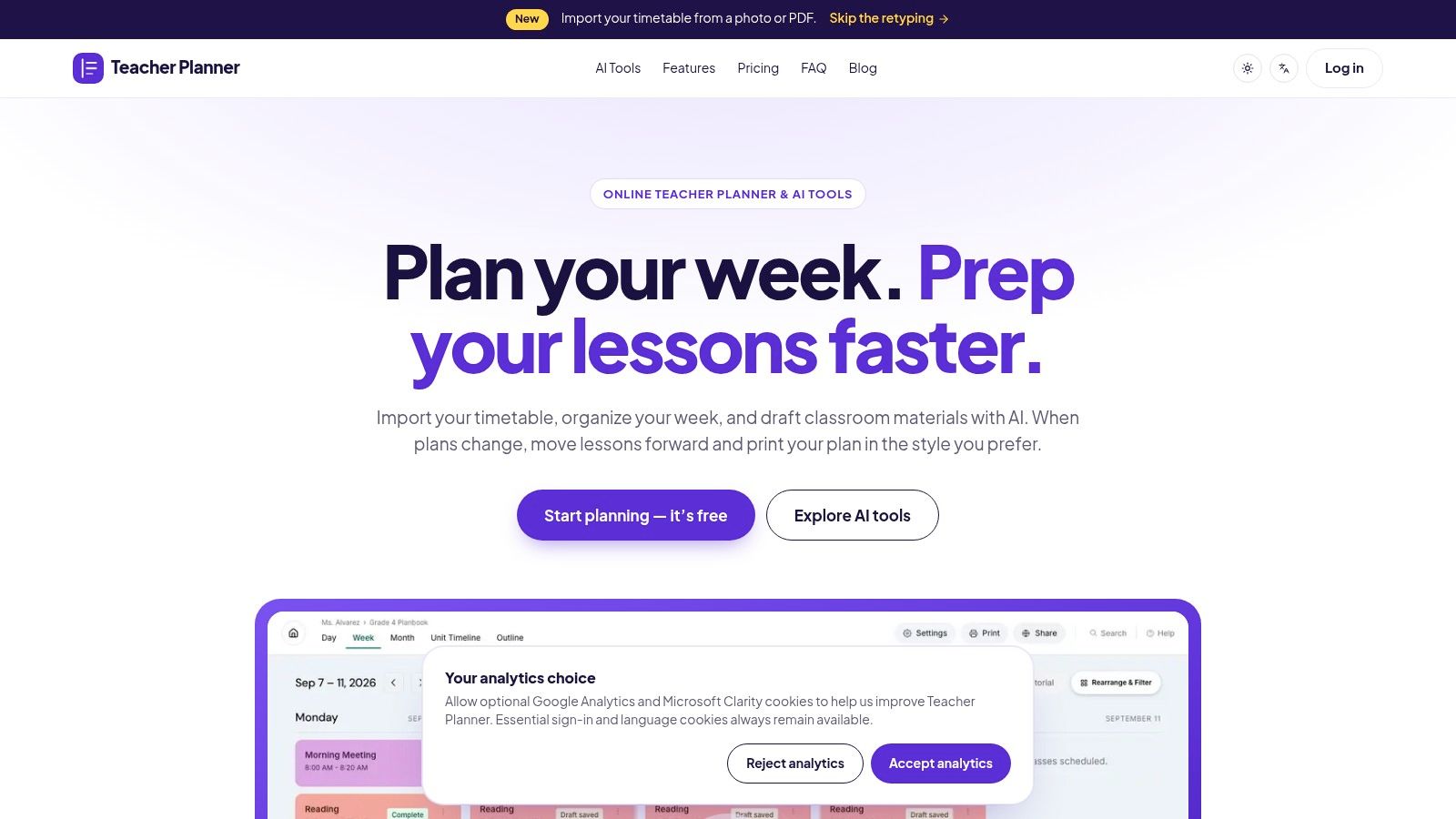
Teacher Planner is the strongest fit when a teacher needs more than a blank document. It combines a browser-based planbook with Day, Week, and Month views, a Unit Timeline, an Outline view, timetable import, printing, and AI drafting tools. You can upload a photo or PDF of a fixed weekly timetable or a plain list, review the detected classes and times, and save the editable result. That removes much of the repetitive schedule entry, but it isn't designed for A/B rotations or whole-school timetable imports.
The planning side works best for teachers whose lesson sequence changes during the term. If an assembly cancels a science lesson, Bump Forward moves the affected lesson and shifts the following lessons in sequence. That's more useful than manually changing every date in a unit plan.
A filled-in lesson example
For a middle school science lesson, use these fields:
- Topic: Separating mixtures
- Learning objective: Students will choose an appropriate separation method and explain why it works.
- Success evidence: Students correctly match filtration, evaporation, and sieving to three mixture examples, then justify one choice in writing.
- Materials: Sand, water, salt, filter paper, funnels, containers, spoons, student recording sheet.
- Starter: Show a container of muddy water and ask students how they would make the water clearer.
- Model: Demonstrate filtration and explain that the filter retains insoluble solid particles.
- Guided practice: Groups select a method for three mixtures and explain their decisions.
- Independent application: Students write a short method for separating salt from water.
- Checks for understanding: Listen for the distinction between dissolving and disappearing. Use a quick exit response.
- Differentiation: Provide a method-choice card with illustrations for students who need support. Ask confident students to compare two possible methods and identify which is more efficient.
- Reflection: Several students confused evaporation with filtration. Revisit dissolved substances before the next lesson.
Teacher Planner's Lesson Plan Generator can create an editable first draft from a topic, objective, or standard. The Worksheet Generator, Multiple Choice Quiz Generator, Text Rewriter, and Writing Feedback tools support preparation around that lesson. You can save results to resources, copy text, download it, or print from the individual tool. The output still needs teacher review for accuracy, age suitability, materials, accessibility, and alignment. Generation limits apply on every account tier, so payment doesn't mean unlimited AI use.
What works and what doesn't
Teacher Planner prints day, week, month, and outline views through Classic, Minimal, and Cards templates. Pro and Lifetime add advanced printing controls, custom date ranges, and full print options. Free includes one planbook, basic Minimal printing, and access to the AI tools. Pro is listed at $9.90 per month or $59.90 per year, with a 7-day trial, and Lifetime is a $299 one-time purchase, according to the official Teacher Planner site. Check the current product page before buying because feature entitlements can change.
The main limitation is scope. Teacher Planner isn't an LMS, gradebook, student assessment-delivery system, or school-wide curriculum-management suite. Keep grades, submissions, and confidential student records in the appropriate school system, and remove identifying student information before using AI tools. It's a particularly good choice for elementary teachers, secondary teachers, special education teachers, co-teachers, homeschool educators, learning pods, and instructional coaches who need plans to remain usable when schedules move.
Practical rule: Use the AI output to remove the blank-page problem, not to remove professional judgment.
2. Planbook
Planbook is a purpose-built online planner for teachers who want structured day, week, and month planning rather than a general document or design canvas. It supports per-class lesson layouts, standards alignment, sharing, printing, and export, including Microsoft Word. That combination makes it useful when administrators, colleagues, or substitute teachers need a consistent plan format.
The best use case is a teacher with several classes and recurring planning patterns. You can create a lesson layout for a particular class, then choose a different layout for another subject. A high school English teacher might include text, discussion questions, writing targets, and evidence of learning, while a physical education teacher might need equipment, safety reminders, skill progression, and modifications.
A substitute-ready English lesson
A practical content template inside a planbook should include:
- Class and date: Grade 8 English, Monday
- Objective: Students will identify how a narrator's point of view shapes a scene.
- Materials: Short story excerpt, annotation guide, response sheet, answer notes.
- Before students arrive: Place the excerpt and response sheet on desks. Write the objective on the board.
- Opening task: Students underline details that reveal what the narrator knows.
- Teacher or substitute directions: Model one paragraph, then have pairs compare annotations.
- Independent task: Students explain how the scene would change if told by another character.
- Check for understanding: Collect the written explanation and look for a reference to narrator knowledge or limitation.
- If students finish early: Rewrite one paragraph from the second character's point of view.
- Next step: Begin the next lesson with two anonymous responses and discuss the difference between summary and analysis.
Planbook is a stronger fit than Canva or a basic word-processing template when you want plans attached to classes and dates. It also suits schools that value printable outputs and sharing. The trade-off is that it requires a paid subscription for full use, and it isn't as flexible as a design tool for creating a polished worksheet or quiz.
Use the Planbook website when your main problem is maintaining a dependable planbook with multiple class structures. If your main problem is producing student-facing materials, pair the planner with a separate worksheet or design application instead of expecting the planbook to do both jobs.
3. Planboard by Chalk
Planboard by Chalk is a useful no-cost starting point for teachers who want a cloud-based planner with web and mobile access. The mobile apps matter when plans change between classrooms, during a planning period, or after a meeting. Timetable scheduling, unit and lesson organization, and copying lessons between terms reduce the need to rebuild familiar structures.
Its strongest planning job is quick reuse. Suppose a fourth-grade teacher taught a place-value lesson in one term and wants to adapt it for a new class. Copying the lesson provides a starting point, while the teacher changes the examples, supports, and check for understanding.
A filled-in mathematics template
- Lesson focus: Comparing multi-digit numbers
- Objective: Students will compare two multi-digit numbers using place-value reasoning.
- Materials: Place-value chart, number cards, mini-whiteboards.
- Warm-up: Display two numbers and ask students to identify the first place where they differ.
- Model: Compare 482,301 and 478,950 by starting at the greatest place value.
- Guided practice: Pairs draw number cards, compare the numbers, and explain the comparison orally.
- Independent practice: Students solve four comparisons and write one explanation using place-value vocabulary.
- Formative check: Ask students to compare two numbers with the same leading digits.
- Support: Use a color-coded place-value chart and fewer digits.
- Extension: Ask students to create two numbers that satisfy a specified comparison.
- Reflection: Note whether students used the symbol correctly but couldn't explain the reasoning.
Planboard is less suitable when you need complex schedule recovery, advanced printable controls, or extensive material creation. Some integrations, including Google Classroom through Chalk Gold, require a paid upgrade, and premium details may not be obvious from the marketing page. Review the current offer on the Planboard platform before choosing it for a school-wide workflow.
For a broader comparison of browser-based planners, see online teacher planners. That comparison is particularly useful if mobile editing is attractive but you also need to know how each planner handles printing, units, standards, and schedule changes.
4. PlanbookEdu
PlanbookEdu keeps lesson planning relatively simple. Its grid layout, reusable templates, standards tagging, file attachments, and PDF or Word export suit teachers who want a straightforward planbook without a large collection of connected systems. Once you establish a repeatable entry structure, recurring lesson components are faster to add.
This is a good choice for a teacher who prepares similar types of lessons throughout the week. An elementary teacher might create a reading-group template with fields for text, phonics focus, vocabulary, guided practice, independent response, and evidence to collect. A secondary teacher could create separate layouts for lecture, seminar, laboratory, and assessment days.
A reading-group template that stays usable
Try this structure for a small-group literacy lesson:
- Text and level: “The Rainy Day,” instructional group B
- Target skill: Identify the main idea and two supporting details.
- Vocabulary: puddle, shelter, soaked
- Before reading: Students predict the problem from the title and illustration.
- During reading: Pause after each section and ask students to name the most important event.
- After reading: Students choose the main idea from three options, then justify the choice.
- Teacher observation: Record whether each student refers to the text or relies on personal opinion.
- Differentiation: Preteach vocabulary with images. Invite advanced readers to write a new title that reflects the main idea.
- Next lesson: Reteach supporting details to students who listed events without explaining importance.
PlanbookEdu's advantage is clarity. It's easier to begin than a fully customizable database, and it supports reusable planning without demanding much design work. Its limitation is breadth. Teachers looking for deep unit mapping, automated sequence recovery, or extensive collaboration may find it narrower than a larger planning suite. Advanced features require Premium.
Visit PlanbookEdu if your preparation task is mainly to write, repeat, attach, print, and export lessons. Choose something else if the planbook must also manage complex unit sequencing or produce visually rich student handouts.
5. Common Planner
Common Planner, formerly Common Curriculum, is built for teachers who need planning and collaboration in the same place. It combines daily, weekly, and monthly planning with unit planning, searchable standards, standards tracking, Google Classroom posting, printable outputs, and an AI lesson assistant.
Its best use case is a team that shares a curriculum but still needs room for teacher judgment. A grade-level team can agree on a unit outcome, common standards, and essential assessment, then adapt lesson activities for different classes. The shared structure makes plans easier to discuss without requiring every teacher to write an identical lesson.
A social studies inquiry template
- Unit connection: Local government and community decisions
- Lesson objective: Students will use evidence from two sources to explain how a local decision affects different groups.
- Standards link: Add the applicable civics or evidence standard.
- Materials: Council agenda excerpt, community map, stakeholder cards, response organizer.
- Launch: Present a proposed change to a nearby public space.
- Source work: Students identify the decision, evidence, and affected group in each source.
- Collaborative task: Groups represent different stakeholders and prepare one evidence-based concern.
- Check for understanding: Each student submits a claim supported by a source detail.
- Differentiation: Provide sentence frames and an audio version of the source. Ask advanced students to identify a trade-off between two stakeholder positions.
- Follow-up: Use student claims to form groups for a structured discussion in the next lesson.
Common Planner is more capable than a static template when a team needs unit-level visibility and collaboration. The trade-off is that the full feature set, including more AI usage and unlimited Classroom posting, requires Pro. Collaboration beyond small groups and school-wide management belongs in the school tier. Confirm current plan limits before adopting it across a department.
The Common Planner site makes sense for collaborative planning, standards review, and shared curriculum work. It may be excessive for one teacher who only wants a printable daily lesson form.
6. Canva
Canva fits the teacher who needs a lesson plan that others can read, print, or adapt. Its lesson-plan library includes editable layouts, visual customization, collaboration, folders, comments, and PDF export. Eligible K–12 teachers and students may access Canva for Education with premium features at no cost, subject to eligibility and current program terms.
A designed page helps when a co-teacher needs the plan, a substitute packet must look organized, or families will receive part of the document. It can also give a department a consistent format for plans and classroom materials. The trade-off is setup time. Canva does not automatically move a lesson after a cancellation or track standards like a dedicated planbook, and choosing among many templates can slow the first draft.
Filled-in visual art plan
Use a simple one-page layout for a lesson that benefits from process images and clear student directions.
| Template field | Filled-in example |
|---|---|
| Lesson title | Warm and cool color scenes |
| Learning goal | Students will use warm and cool colors to create contrast in a scene. |
| Materials | Watercolor paper, paint, brushes, water cups, reference images |
| Demonstration | Show how a cool background makes warm foreground objects stand out. |
| Student process | Sketch a horizon, choose a warm or cool foreground, then paint in layers. |
| Vocabulary | Contrast, foreground, background, palette |
| Check for understanding | Students point to the warm and cool areas before painting. |
| Accessibility | Offer larger brushes, a limited palette, and a visual sequence card. |
| Assessment | Look for intentional contrast and a clear foreground-background relationship. |
| Reflection | Students circle a deliberate color decision and explain its effect in one sentence. |
Customize the page for the preparation task. Add a small reference image for an art demonstration, a substitute note beside the materials, or a family-facing explanation below the learning goal. Keep the written plan editable before sharing it. For a first draft, try the Lesson Plan Generator, then revise its language, timing, materials, and supports.
Explore Canva's lesson plan templates for an attractive printable or collaborative document. Use a dedicated planbook alongside it when lessons regularly need to move across a changing timetable.
7. Adobe Express
A substitute packet needs more than a lesson title. The teacher covering the class must see the objective, materials, sequence, and collection instructions without opening several files. Adobe Express suits that preparation job because its ready-to-edit lesson planner templates, classroom sharing options, learning kits, and activity-generation tools help organize directions into a polished, editable document. Its education access is available to K–12 schools, teachers, and students through institution-managed access, so the features available to you depend on your school's setup.
Filled-in substitute lesson page
Start with a clear page title, such as “Context Clues: Independent Practice,” then fill the template with the information a substitute needs:
Objective: Students will use context clues to infer the meaning of unfamiliar words.
Materials: Short passage, context-clue organizer, dictionary or approved reference tool. Add a substitute note beside this field: “Partners may share materials. Collect organizers in the labeled tray.”
Opening: Display an unfamiliar word in a sentence and ask students to identify the surrounding clues.
Mini-lesson: Model definition, synonym, antonym, and example clues.
Guided practice: Complete two examples together, naming the clue used.
Independent work: Students identify the clue type and infer meanings for four words.
Early-finisher task: Write a sentence that helps another reader infer a target word.
Assessment: Check whether each inferred meaning fits the sentence, rather than only resembling a dictionary definition.
Next step: Reteach the clue types students confuse.
Use color, spacing, and small visual cues to separate teacher directions from student tasks. A family-facing explanation can sit below the objective, while a second page can hold extension work or absence notes. Keep every field editable until the document has been checked for timing, materials, and accessibility.
Adobe Express fits polished handouts, substitute directions, and shareable classroom documents. A dedicated planbook remains the better choice for lesson bumping, timetable import, and sequence management. Advanced features may also depend on the school's Adobe configuration. Review the Adobe Express lesson planner collection before building a workflow around a feature your institution may not provide.
8. Twinkl
A teacher preparing a hands-on science lesson often needs more than blank planning fields. Twinkl combines editable lesson-plan templates, daily and weekly planners, downloadable PDFs, editable files, lesson packs, and resources organized by grade and subject. You can select a starting activity, then adjust its examples, timing, vocabulary, grouping, and assessment for the class.
For an elementary science lesson on animal adaptations, a completed template might read:
- Topic: Animal adaptations
- Objective: Students will identify an adaptation and explain how it helps an animal survive.
- Resources: Animal image cards, short information texts, adaptation sorting sheet.
- Starter: Display a bird beak, webbed foot, and thick fur. Students predict each function.
- Teach: Define adaptation and model one animal-example connection.
- Activity: Groups sort animal cards by adaptation, then use the texts to check their reasoning.
- Formative check: Each group completes, “The ___ helps the animal ___ because ___.”
- Independent task: Students draw an animal and label two adaptations.
- Support: Add a word bank and partly completed sentence frames.
- Challenge: Explain why an adaptation could help in one environment but not another.
- Review: Collect or photograph the drawings, then group students by the misconception shown.
This suits a planning job that includes finding the materials needed to teach. A teacher can replace the animal cards, shorten the information text, or add absence notes without rebuilding the lesson. Allow setup time to find a suitable pack, check reading level, confirm printing requirements, and remove activities that exceed the available lesson time.
The catalog can become difficult to manage without saved collections. The strongest value generally requires a paid subscription, and pricing varies by country and plan. Twinkl does not replace a planbook for timetable organization, sequence changes, or printable plan views.
Use Twinkl when content acquisition is part of preparation. Review the completed plan before teaching, especially its materials, timing, accessibility, and assessment fields.
9. Teach Starter
A teacher has a new middle school math group tomorrow, limited preparation time, and no reason to create every worksheet from scratch. Teach Starter supports that situation with editable lesson-planning templates, complete lessons, units, printables, and week or term planners. It sits between a blank template and a finished lesson, giving teachers content they can adapt rather than a fixed plan they must follow.
For covering an unfamiliar topic quickly, start with the subject and grade collection, then adjust the examples, timing, vocabulary, and assessment to match the class. One filled-in intervention plan might look like this:
Focus: Solving one-step equations
Objective: Students will solve one-step equations and explain the inverse operation used.
Prior knowledge: Students can add, subtract, multiply, and divide integers.
Warm-up: Match an equation to the operation needed to isolate the variable.
Model: Solve (x + 7 = 12), name the inverse operation, and check the answer.
Guided practice: Students solve examples on mini-whiteboards and explain each step.
Independent practice: Complete a short set mixing addition, subtraction, multiplication, and division.
Misconception check: Ask why subtracting seven from only one side is invalid.
Support: Use a balance model and equations with smaller values.
Extension: Write an equation with a chosen solution and explain its construction.
Exit task: Solve one equation and show the check.
The same template can support a substitute packet by replacing the live modeling notes with clearer directions, answer keys, and early-finisher work. For a disrupted unit, revise the objective, move the exit task into the next lesson, and record which prerequisite still needs review. Those edits take less time than building a complete sequence, but the resource still needs a teacher's check for accuracy, reading level, accessibility, and fit with available materials.
Paid tiers provide access to the wider library of templates and classroom resources. The US plan includes unlimited downloads on paid tiers, though access and plan details should be checked before subscribing. Teach Starter offers less schedule logic than Planbook or Teacher Planner, so a planbook remains more suitable for frequent cancellations or complex sequences. A design tool is a better choice when the content is ready and the priority is producing a highly customized visual handout.
10. Notion Template Gallery
A teacher preparing one biology lesson can use Notion to connect the plan, resource links, standards, and post-lesson reflection in one workspace. Its free teaching template gallery supports linked pages and databases, with calendar, board, table, and list views for reviewing the same information in different ways.
A filled-in entry might read: Unit: Cell transport. Lesson objective: Students will explain how concentration gradients affect diffusion and predict the direction of net movement. Prerequisite: Review concentration and particle movement. Materials: Diagram, short reading, simulation or demonstration, and prediction sheet. Launch question: What happens when particles are more concentrated in one area? Model: Show movement from higher to lower concentration. Application: Students predict movement in three diagrams and justify each response. Check for understanding: Correct a diagram showing movement in the wrong direction. Differentiation: Add labeled diagrams and sentence frames, or ask advanced students to connect diffusion to a membrane scenario. Assessment: One written explanation and one annotated diagram. Reflection and next step: Record whether students confused net movement with individual particle movement.
The same fields can be adapted for other preparation jobs. For a subject-specific lesson, add links to the relevant reading, standards, and worksheet. For a substitute packet, replace live modeling notes with numbered directions, answer keys, classroom routines, and early-finisher work. For a disrupted unit, move the unfinished task into the next lesson and note the prerequisite that needs review.
Notion gives a learning pod organizer or instructional coach a useful way to connect a lesson with its unit, resource collection, and follow-up note. The trade-off is setup. You must decide how databases relate, choose useful fields, and maintain those relationships. Fixed weekly timetables may require more configuration than a dedicated planbook such as Teacher Planner, which is better suited to fast schedule entry and lesson sequence adjustments. A design tool fits better when the content is ready and the priority is a highly customized visual handout.
Explore the Notion teaching template gallery if you want a personal planning system and can invest time in building it. Review each template for accuracy, reading level, accessibility, and fit with available materials before using it with students.
Top 10 Lesson Plan Template Comparison
| Product | Key features | Scheduling & flexibility | AI & content | Best for / Pricing & USP |
|---|---|---|---|---|
| Teacher Planner (Recommended) | Day/Week/Month views, Unit Timeline & Outline, photo/PDF timetable import, Bump Forward, print templates | Fast timetable import (photo/PDF); Bump Forward keeps sequence; fixed-week support; browser-based | Built-in AI: lesson plans, worksheets, MCQs, text rewrites, writing feedback; save to resources; outputs are drafts | Best for flexible weekly schedulers (K–12, homeschool, special ed); Free (1 planbook), Pro $9.90/mo or $59.90/yr (7‑day trial), Lifetime $299; USP: timetable import + sequence recovery + integrated AI |
| Planbook | Per-class day/week/month layouts; standards alignment; Word/print export | Good per-class layouts; strong printable outputs; less emphasis on advanced imports | No native AI content generators | Best for K–12 teachers who need robust printable planbooks; paid subscription; USP: mature, print-focused tool |
| Planboard (Chalk) | Web + iOS/Android apps; timetable scheduling; copy lessons between terms; integrations | Timetable-driven planning; easy lesson copying; strong mobile edits | No core AI; optional premium integrations (e.g., Google Classroom) | Best for teachers who need a free mobile-friendly planner; Free core, Chalk Gold paid for extra integrations; USP: mobile-first, quick edits |
| PlanbookEdu | Reusable templates; standards tagging; PDF/Word export; multi-planbook on Premium | Simple daily/weekly grid; quick template workflow; limited deep unit mapping | No built-in AI; template-driven content reuse | Best for teachers wanting straightforward planbook with templates; Free vs Premium tiers; USP: clear feature tiers and fast templating |
| Common Planner (formerly Common Curriculum) | AI lesson assistant; standards search & tracking; unit planning; Google Classroom posting; collaboration | Unit-level sequencing with automatic standards tracking; collaborative planning | Built-in AI assistant for lessons; balanced output templates | Best for collaborative teams and schools; Pro tier for full features; USP: collaboration + AI + Classroom posting |
| Canva (Education) | Thousands editable lesson templates; drag-and-drop editor; real-time collaboration | Not schedule-aware (no bump logic); strong visual/layout control | No lesson-plan AI; design-focused templates and edits | Best for visually polished handouts and shareable plans; Canva for Education free for eligible K–12; USP: design/customization at scale |
| Adobe Express (Education) | Editable planner templates; generate-activity tools; classroom sharing | Not a schedule-aware planbook; fast template remixing | No dedicated lesson AI; strong design toolkit | Best for polished, brand-aligned printables; free for K–12 institutions (managed); USP: professional design controls |
| Twinkl | Huge library of downloadable lesson-plan templates, planners, standards-aligned packs | Static downloadable planners; not a live scheduler | No integrated AI; large ready-made resource sets | Best when you need pre-made lesson content & printables; subscription recommended; USP: vast catalog across grades/subjects |
| Teach Starter | Editable templates, complete lesson plans, week/term planners, grade/subject collections | Template/plan-focused; not specialized for schedule bumping | No built-in AI; resource-rich library | Best for teachers wanting complete resource library; subscription for full access; USP: combined templates + full lesson materials |
| Notion template gallery | Free teacher-made templates; database views (calendar/board/table); highly customizable | Flexible calendar/board views via databases; requires custom setup; no bump logic | No native AI (depends on user setup); high customizability | Best for tech-savvy teachers wanting custom dashboards; free Notion plan usable; USP: flexible, linkable databases and multiple views |
Turn a Template Into a Reliable Planning Routine
A template becomes useful when it helps you make instructional decisions repeatedly. Start by identifying the planning horizon. A single-lesson content template should help you prepare one class period. A weekly or monthly grid should help you see workload and timing. A unit timeline should help you manage sequence and dependencies. These are related jobs, but they aren't interchangeable.
Keep only fields that support instruction. The six familiar planning areas of objectives, vocabulary, resources, starter, main activity, and plenary remain useful because they create a durable basic workflow. However, a practical modern template also needs room for pre-assessment, formative checks, misconceptions, differentiation, and post-lesson reflection. Historical analyses have found that teacher planning templates have remained remarkably stable since the 1940s, with those six sections recurring across planning formats in the Appalachian State history education archive. That continuity makes the basic structure familiar, but it doesn't mean every lesson should stop at starter, activity, and plenary.
A good test is to complete one real lesson before committing to a tool or layout. If the template takes longer to complete than the planning itself, remove fields. If it doesn't prompt you to decide what evidence you'll collect, add an assessment field. If you can't find the plan quickly when a colleague or substitute needs it, improve the view or print format.
Use this customization workflow:
- Objective: Write what students will do or understand, not what the teacher will cover.
- Materials: List only what students and the teacher need for this lesson, including links, copies, equipment, and accessibility supports.
- Sequence: Record the opening, modeling, guided practice, independent or collaborative application, and closing review.
- Checks for understanding: Place a quick check before the end, then state what you'll do if students show confusion.
- Differentiation: Name the support, accommodation, or extension. “Differentiate” isn't an action until you specify the changed text, prompt, grouping, time, tool, or expected response.
- Assessment: Define the work that will show whether students met the objective. A completed activity isn't automatically evidence of learning.
- Next steps: Leave a short space for what to reteach, extend, group, or change in the next lesson.
For a substitute packet, add practical directions that another adult can follow without knowing your routines. Include the objective, seating or grouping information where appropriate, materials location, timing, technology alternatives, what to collect, early-finisher work, and what to do if the lesson is interrupted. Keep student information appropriate and don't place confidential details in a general-purpose template.
For a disrupted unit, use a unit-level view rather than editing isolated daily documents. Mark the essential outcome, prerequisite lessons, flexible activities, and the evidence that must still be collected. If a cancellation occurs, move the lesson sequence while preserving the instructional dependency. A schedule-aware planbook can handle that operational job more reliably than a visually attractive document.
AI can reduce drafting time, but it doesn't remove the review step. Read every generated lesson for factual accuracy, developmental suitability, realistic timing, materials, cultural responsiveness, accessibility, and alignment between the objective and assessment. Don't enter identifying student information into an AI tool, and keep grades and student submissions in your school's approved system. Teacher Planner's own AI tools produce editable drafts, while its planbook handles schedule organization and printing. That separation is useful because a generated draft still needs a teacher's decisions before it becomes classroom instruction.
The American Statistical Association's STEW lesson-plan repository) also illustrates why consistent structures matter beyond personal organization. Its peer-reviewed resources use a standard template, showing how a common format can support review and sharing, not merely filing. For a classroom teacher, the practical lesson is simple: make your plan understandable to another educator, even if you remain the only person who uses it.
Choose Canva or Adobe Express when the document needs strong visual design. Choose Twinkl or Teach Starter when you need ready-made classroom content with the plan. Choose Notion when you want to build a connected personal system. Choose Planbook, Planboard, PlanbookEdu, or Common Planner when your main need is a digital planning environment. Choose Teacher Planner when you need schedule-aware organization, sequence recovery, printable views, and an editable first draft in the same browser-based workflow.
Before adopting any lesson planning template, prepare one lesson from start to finish. Fill in the objective, materials, sequence, checks for understanding, differentiation, assessment, and next steps. Then print or share it as the person who will use it, a busy teacher before class, a colleague planning with you, or a substitute arriving without your usual context. If the plan still makes the next instructional decision easier, you've found a structure worth reusing.
Teacher Planner combines a browser-based planbook with timetable import, Day, Week, Month, Unit Timeline, and Outline views, Bump Forward for disrupted sequences, printable templates, and AI tools for editable lesson drafts and classroom materials. Visit Teacher Planner to see whether it can turn your reusable lesson planning templates into a schedule-aware routine.