
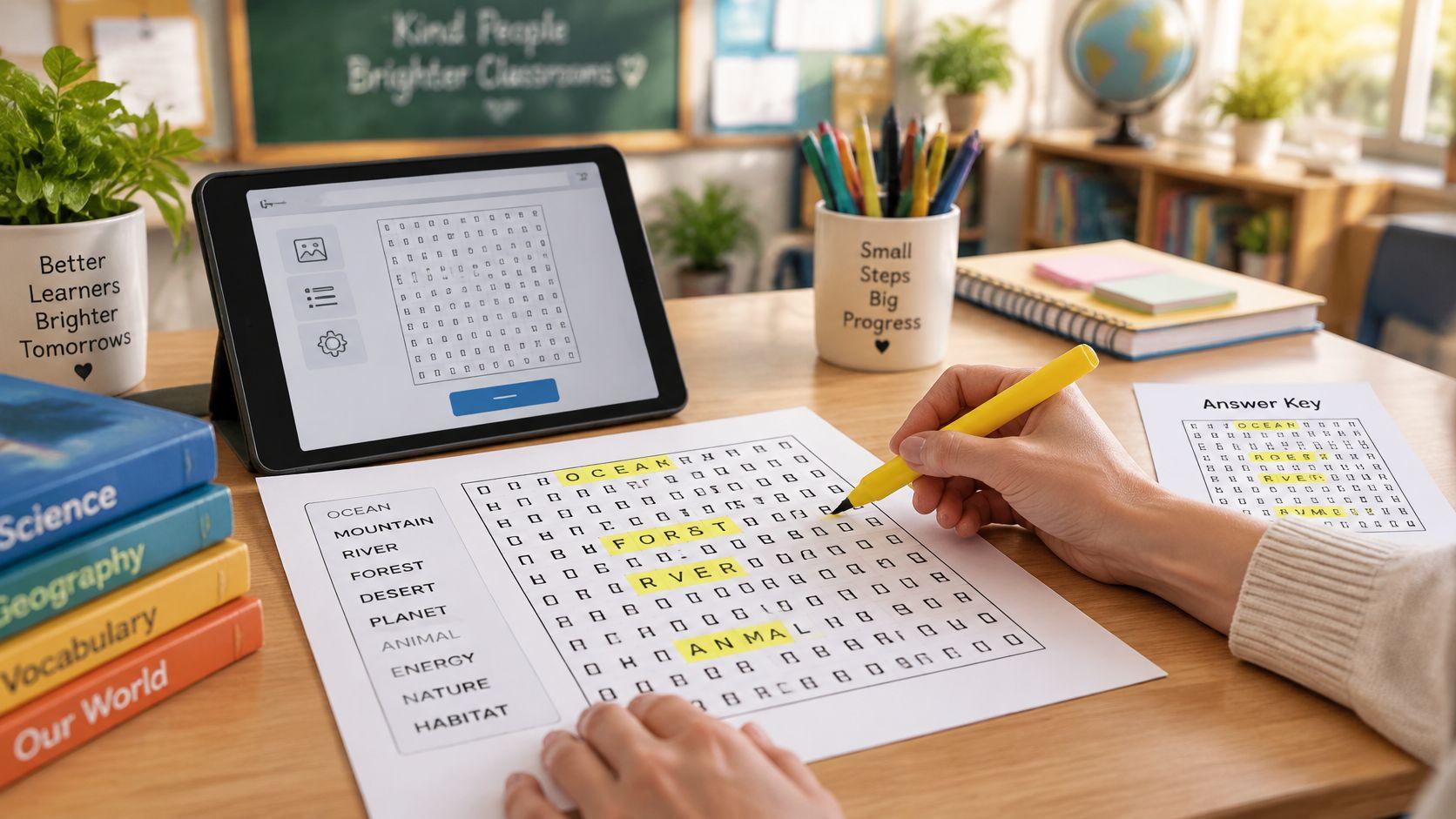
Tomorrow's vocabulary lesson is planned, but the review activity still needs preparing. A word search generator turns a word list, or a topic-generated list, into a letter grid with hidden terms, usually accompanied by a word bank and an answer key. Teachers can use it to prepare spelling or vocabulary reinforcement without placing letters by hand. The useful classroom version pairs that search with a short meaning check, so finding a word isn't mistaken for understanding it.
What a Word Search Generator Does and When to Use One
A classroom-ready puzzle needs three matching outputs. The grid contains the hidden words. The word bank tells students which terms to find, while the answer key identifies their locations so the teacher can check the finished activity.
A teacher-supplied list gives the closest connection to the lesson. A topic-generated list needs more editing because it may include unfamiliar vocabulary or terms the class hasn't studied.
Where the activity fits
Word searches work as reinforcement after instruction, a warm-up, early-finisher work, substitute material, or homework review. They're less suitable for introducing unfamiliar concepts without explanation.
Assessment boundary: Finding evaporation demonstrates recognition of its written form. Explaining how liquid water becomes water vapor requires a separate response.
Illustrative classroom example: A grade 4 teacher selects eight weather terms, creates a 15 by 15 puzzle, and prints a class set. The teacher plans five minutes to check answers using the key, followed by a written explanation of one weather process.
Every generated grid remains an editable draft, not a print-ready guarantee. Teachers preparing AI-assisted materials may also consult articles from LunaBloom AI for broader drafting ideas, while keeping the taught vocabulary as the basis for the activity.
The practical decisions are which settings suit the class, how the puzzle will be generated and checked, and which adaptations students need.
Settings That Change How Hard the Puzzle Feels
Difficulty settings and starting points by grade band
These are illustrative classroom starting points, not validated grade-level benchmarks.
| Setting | What it changes | Starting point, grades K-2 | Starting point, grades 6-8 |
|---|---|---|---|
| Grid size | More hiding space and visual clutter | 8 by 8 to 10 by 10 | 15 by 15 to 20 by 20 |
| Word count | More words means more searching per puzzle | 5 to 6 words | 12 to 18 words |
| Word length | Longer words can blend into surrounding letters | 3 to 5 letters | 6 to 10 letters |
| Directions | Each added direction raises search effort | Horizontal and vertical | All eight, including reversed |
| Overlap | Shared letters create anchors or dense clusters | Low | Moderate |
| Filler letters | Random letters add visual noise | Fewer, with picture or definition clues | Full random fill |
Grid size and directions deserve attention first. A larger grid creates more places to search, while reversed and diagonal words make orientation less predictable. The word-search generation algorithm guide identifies grid size, word count, directions, and overlap among the structural controls involved in puzzle generation.
Word length comes next, but length alone doesn't determine difficulty. Familiar short words may be recognized as a unit, while unfamiliar longer terms require closer scanning; distinctive long words can also stand out. Word count determines how much searching students must complete before finishing.
Overlap isn't simply harder
Shared letters can give students useful starting points. They can also produce crowded clusters that are difficult to track, especially when several directions are enabled.
Filler density matters too. If a generator always fills every unused cell, a smaller grid is the practical way to reduce scanning demands rather than assuming a sparse-fill control exists.
Illustrative comparison: A 20 by 20 grid with forward-only words can feel easier than a 12 by 12 grid containing reversed diagonals. The smaller page isn't automatically the easier task.
Illustrative progression: A grade 3 class begins with six spelling words in a 10 by 10 grid using horizontal and vertical placements. After two successful rounds, the teacher tries a 15 by 15 version with reversed words.
Practical rule: The teacher should solve and time the finished puzzle, change one setting at a time, and save the settings alongside the word list for a matched version.
Designing Word Searches for Every Learner
A student may know the vocabulary yet struggle with dense lettering, backward words, similar-looking letterforms, or an unordered word bank. Accessibility and difficulty aren't interchangeable. Reducing an unrelated barrier preserves the learning target rather than lowering it.
A systematic review of word-search vocabulary learning reported positive vocabulary outcomes across the literature it examined, but that doesn't establish that conventional puzzle layouts suit every learner.

Accessibility presets by learner need
| Learner need | Grid and print | Directions | Word bank support |
|---|---|---|---|
| Dyslexia or visual impairment | Larger print, generous spacing, high-contrast black on white | Horizontal and vertical only | Plain single-column list |
| Multilingual learners | Illustrative 10 by 10 grid with 5 to 8 words | Horizontal and vertical only | Picture or short translation beside each term |
| Fine-motor needs | Larger cells, fewer cells per row, highlighter marking instead of pencil circles | Horizontal and vertical only | Word bank on the same page |
| Attention needs | Smaller grid with a teacher-set short time limit | Horizontal and vertical | Word bank laid out in rows of three |
Adjust the barrier, not the content
For a student with dyslexia, a clear, familiar typeface or a preferred dyslexia-friendly font may make the sheet more usable. For a student with visual impairment, the teacher should follow established print accommodations rather than treating a font change as sufficient.
Multilingual learners may benefit from a brief definition beside each listed term, in addition to pictures or translations. The support should clarify the concept without turning the task into decoding unfamiliar instructions.
Students with fine-motor needs can highlight words or indicate locations verbally. For attention support, the word bank can follow a consistent spatial order, such as top-to-bottom placement, rather than adding another organizational demand.
- Alternative response: Matching terms to definitions or completing sentences uses the same content without requiring efficient grid scanning.
- Co-teaching preparation: General and special education teachers should agree on the format before printing.
- Student feedback: The student's ability to use the sheet matters more than the preset's label.
The guide to ways to differentiate instruction offers a broader planning context. Orange Neurosciences' discussion of word games for older adults provides a cross-age perspective on selecting usable word activities, although it isn't evidence for K-12 accommodations.
How to Generate and Edit a Word Search
Teacher Planner's free word search generator follows these steps in the browser, with no sign-in. It takes one word per line, or a word and its clue, offers Easy, Medium and Hard presets for directions and overlap, and prints the puzzle on Letter or A4 with the answer key on its own page. It saves nothing and sends the list to no AI service.
Before entering any list, the teacher should remove student names, nicknames, and other identifying details. Course vocabulary is sufficient input for this task.
- Choose the content. The teacher pastes one term per line into a dedicated word search generator, or starts with a topic if that option exists. A fixed list is preferable when the puzzle must match taught vocabulary exactly.
- Set available options. The teacher chooses grid size and permitted directions, then adjusts grade level or word count where those controls are present. The settings should reflect the intended learners rather than a default difficulty label.
- Generate the draft. Generation may require a short wait rather than producing an immediate result. The teacher should keep the original list available for comparison.
- Edit the content. Misspellings, off-topic terms, and words too long for the selected layout should be corrected or replaced before regeneration.
Each word needs a placement inside the grid, and crossings must use matching letters. A constrained generator may flag an impossible placement, while a weaker implementation may omit a word; blank cells are then filled, so a complete-looking grid doesn't prove the list is complete.
- Save the source. The teacher stores the final list, title, settings, and meaning-check prompt together. This makes a comparable version easier to prepare for another class.
- Prepare the outputs. Using the generator's available actions, the teacher prints or saves the grid and word bank, copies editable text where supported, and keeps the answer key separate from the student sheet.

Why regeneration sometimes helps
A generator must satisfy placement constraints, not merely scatter words at random. Oskar Bechtold's thesis on word-search generation describes grid construction and filling, including approaches that revisit placement choices or relax requirements when a configuration cannot be found.
For the teacher, the useful response is concrete: enlarge the grid, shorten the list, or permit another direction. Repeatedly generating an unchanged, overconstrained puzzle may not solve the underlying problem.
A polished layout still needs a word-by-word check against the original list.
AI-based tools process the material entered into them, and their output can reproduce original input. Teacher Planner's input is processed by AI services, so identifying student information should stay out of those fields.
The AI worksheet preparation guide provides related drafting context, but worksheet controls shouldn't be assumed to be word-search controls. The print checklist below applies to the finished puzzle regardless of the generator used.
Classroom Uses With Sample Word Lists
Illustrative lists ready for adaptation
Grade 6 science warm-up: After a lesson on cells, a teacher uses these ten terms: cell, nucleus, cytoplasm, membrane, organelle, mitochondria, ribosome, vacuole, chloroplast, and cellulose. The follow-up asks students to name a structure and explain its function.
Grade 2 spelling homework: A six-word list contains rain, train, snail, paint, chain, and mail. The teacher attaches the key for a parent or caregiver and adds a short spelling-from-memory task after the search.
Grade 5 geography early-finisher work: An eight-country list contains Canada, Mexico, Brazil, Chile, Peru, France, Spain, and Japan. Students then locate selected countries on a map, so the activity extends beyond recognizing names.
Homeschool history review: A twelve-term list contains colony, trade, tax, protest, boycott, liberty, congress, delegate, petition, militia, treaty, and constitution. The accompanying prompt asks students to connect selected terms to events already studied.

Pair the search with evidence of learning
A useful sequence is review, pronounce, search, then explain or spell. The teacher provides the defined list, reviews pronunciation and meaning, assigns the puzzle, and collects a brief response that addresses the actual objective.
In a classroom-action study of novice learners, reported vocabulary mastery increased from 46.9% in the first cycle to 84.4% in the second, when the second cycle included interactive group work and three pronunciation repetitions alongside the puzzle. That finding concerns a combined classroom approach, not a guaranteed effect from a generator.
The VideoLearningAI guide to learning objectives offers a starting point for deciding what students should demonstrate. An objective such as explaining a cell structure's function calls for a different response than recognizing its spelling.
For word-list assessment, Teacher Planner's Vocabulary Quiz Maker follows Input > Review > Quiz: enter words and grade, sign in free to generate definitions, review and edit those definitions, then create the quiz and use its copy, download, or print actions. Daily generation limits apply, and teachers must check meanings, distractors, and the answer key before class.
General topic, standards, or passage-comprehension questions belong in the general quiz generator, rather than that word-list workflow. The vocabulary practice worksheet guide offers additional context for preparing practice around the same terms.
Review Checklist and a First Puzzle to Build
The teacher's final check should use the actual printed layout, not only the onscreen preview. Shrinking a page to fit can make a usable grid difficult to read.
- Word accuracy: Every listed term appears exactly as spelled, without input typos.
- Placement: No word crosses the grid edge, and every placement follows an allowed direction.
- Answer key: Every term is marked, and the key matches this version of the grid.
- Course alignment: Definitions, capitalization, and spelling match classroom materials.
- Test solve: The teacher solves and times the puzzle, then judges whether the selected settings suit the class.
- Privacy: The title, list, and footer contain no student names or identifying details.
- Readability: Print is readable at the intended viewing distance, including from the back of the room if displayed, and the word bank stays on the same page.
The word-search construction explanation describes placement within boundaries and crossings only at matching letters, which makes checking the input spelling as important as checking the finished grid.

A manageable preparation task for this week
- Select: For an illustrative first puzzle, the teacher chooses eight to twelve familiar terms from tomorrow's unit lesson.
- Build: The teacher selects suitable starting settings, generates the puzzle, and completes the print checks.
- Keep: The final list and settings are saved together, with a student sheet, separate key, and brief meaning check.
Generated material can contain errors. Facts, answers, wording, and difficulty need teacher approval before students receive the activity.
Teacher Planner offers a browser-based planbook and drafting tools for lessons, worksheets, and vocabulary quizzes. The free word search generator builds the puzzle itself, and teachers can visit Teacher Planner to prepare a meaning check alongside the puzzle and organize the lesson on the unit timeline.