
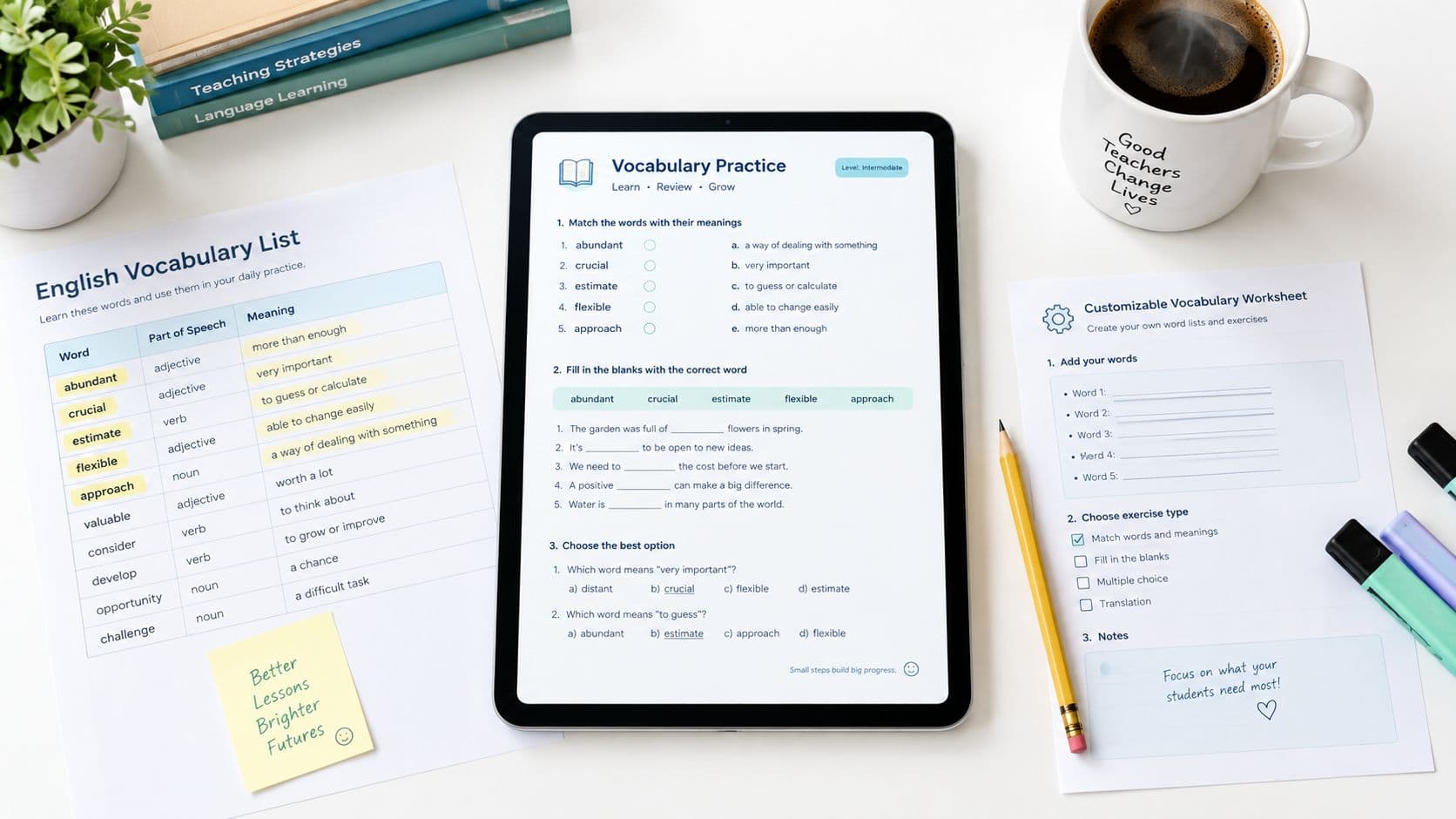
You open the laptop five minutes before the bell, realize the unit starts tomorrow, and still need a page students can use. A vocabulary worksheet generator free option is only helpful if it gives you something editable, quick to review, and easy to print, not another static page full of low-value blanks.
That's the standard I'd use here. Build one usable worksheet, check it yourself, then decide whether it's worth handing out.
The Monday Morning Vocabulary Worksheet Problem
Monday morning exposes the problem fast. You have six to ten target words, a class that needs practice, and very little time to build a page from scratch.
A free generator helps only when it gives you something you can edit before printing. A rigid PDF of matching boxes may look finished, but it leaves no room to adjust wording, simplify directions, or add context the class needs. The better workflow starts with a draft you can shape into a usable handout.
What this guide covers
This section keeps the focus on one practical worksheet inside a planner workflow. The goal is a page you can use tomorrow, with enough structure to support recognition and sentence use, plus enough flexibility to adapt for different learners.
Practical rule: If you cannot edit the output, it is not ready for a classroom handout.
Build the page from a short word list, review the draft, then print the final version. That keeps vocabulary prep small enough to repeat each week without turning it into a second job.
What to Put Into a Free Vocabulary Worksheet Generator
The strongest worksheets start with tight inputs. A generator can only make good choices when you give it a word list, a grade-level hint, and a little context for how the class will use the words.
Keep the prompt narrow
Start with the words students need. Pull them from the unit plan, standards list, or chapter glossary, then trim anything that won't fit on one page. If the class is working on science, social studies, or English learners' support, note that in the prompt so the output stays close to the lesson's purpose.
Use a short structure like this:
- Word list: the key terms students must learn
- Grade level: the band you're teaching
- Context sentence: one short sentence for each word if you have it
- Constraint: science topic, English learners, review lesson, or mixed ability group
The more focused your list, the less time you spend deleting clutter later. Free accounts also tend to have generation limits, so it makes sense to enter only the words that matter most instead of trying to dump an entire unit's glossary into one run.
A simple weekly routine
Sign in first, then build the prompt once and reuse it. If you're working from a PDF or a class handout, it can also help to edit and compress PDFs online before you paste or copy the content into your planning workflow.

A clean input block keeps the generator from overworking the wrong part of the task. It also makes it easier to compare one week's worksheet against the next, because the inputs stay consistent even when the words change.
Building a Vocabulary Worksheet From a Short Word List
Here's a simple classroom example. Say you're teaching ecosystems and want students to work with habitat, organism, predator, prey, adaptation, and population.
Use the words the class already needs
Open the worksheet tool in the planner and paste the six words into the generator. Add a brief context note for each one, such as “an animal's home,” “a living thing,” or “a trait that helps survival.” Then choose a middle-grade level so the wording stays readable without becoming childish.
For this workflow, the worksheet generator is inside Teacher Planner's Worksheet Generator, and the output should be treated as a draft. The tool gives you a starting page, not a finished authority on vocabulary or pedagogy.
What the draft should look like
A usable first draft usually includes a title, a grade-level band, a recognition section, and a short production prompt. You might see a layout like this:
- Word bank: habitat, organism, predator, prey, adaptation, population
- Section 1: match each word to a student-friendly meaning
- Section 2: choose the word that fits the sentence about an ecosystem
- Section 3: write one original sentence using adaptation or population
A strong draft doesn't need to be fancy. It needs to be readable, aligned to the unit, and easy to revise. Once it's generated, save it in your resources area, check the wording, and make the changes that match your class before you print.

The first draft is for you, not for students. Read it like a teacher, not like a user who's relieved the page exists.
Adapting the Worksheet for Different Learners
The fastest way to improve a generated worksheet is to change the supports, not the target words. CAST's guidance on vocabulary and language structures emphasizes connecting terms to alternate representations, such as definitions, illustrations, translations, or embedded supports, instead of leaving words isolated on the page [CAST vocabulary guidance].
Small edits that matter
If the directions feel dense, turn them into numbered steps. If the answer space looks cramped, enlarge the lines. If your learners need more access, add a picture prompt, a home-language translation line, or a familiar synonym. If the page feels too busy, reduce the number of words from six to four and give each one more space.
A simple adaptation table helps when you're deciding what to change.
| Learner profile | Useful adjustment |
|---|---|
| Early elementary | Add a picture, shorten directions, and use a smaller word set |
| Middle school general | Keep the structure but increase the sentence demand |
| English learners | Add translation space, sentence frames, or a visual cue |
| Students with reading difficulties | Enlarge spacing, reduce the word count, and simplify wording |
The point is not to make every worksheet easier. The point is to make the same vocabulary accessible through more than one route. If a student can recognize the word, read it in context, and use it in a sentence, the page is doing real work.

A worksheet with fewer barriers often teaches more than a crowded page with more items.
Why a Recognition and Production Mix Works Better Than Matching Alone
A page of matching items can be useful, but it's not enough on its own. The What Works Clearinghouse guidance for English learners recommends extensive and varied vocabulary instruction, which fits a worksheet that moves from definition to context to student production [What Works Clearinghouse practice guide].
Build the page in layers
Start with recognition, such as matching the word to a student-friendly definition. Then move to contextual meaning, where the student chooses the right word in a sentence. End with production, where the student writes an original sentence or fills in a sentence frame. That last step is where you see whether the word is just familiar or actually usable.
A thin worksheet asks, “Which word goes with this definition?” A stronger one asks, “Where does this word fit in a real science sentence, and can the student use it independently?” That difference matters because vocabulary is not just recall. It's use.
The 2025 multilingual learner snapshot also points toward richer sentence-level work and context-based practice, especially when teachers want students to do more than repeat a word list [2025 multilingual learner snapshot]. So when you review a draft, keep the items that show understanding in context, and cut the ones that only test memorization.
Teacher Planner's multiple choice quiz generator can be a useful companion when you want a second practice format from the same word set.
Quality bar: If the worksheet only tells you whether a student can recognize a word, it's still too shallow for most classrooms.
Reviewing, Saving, and Printing the Worksheet
Treat the generated page as an editable draft until the last second. Check whether each definition matches the intended grade-level meaning, whether the context sentence is accurate, and whether the answer key supports the task you want students to do.
Your two-minute pre-print check
Before you print, run through this quick pass:
- Meaning check: Does each word match the lesson's meaning?
- Sentence check: Is every example sentence clear and accurate?
- Layout check: Are the directions easy to scan?
- Answer key check: Can you edit it if something is off?
- Access check: Do students have enough room to write?
Teacher Planner keeps the worksheet as a resource you can copy, download as text, or print after review. That print step is separate from the planbook print templates, so you're handling the worksheet as its own classroom material, not as part of the schedule view.
A polished handout is still your responsibility. The generator saves time, but the teacher decides what stays, what changes, and what goes.
If something looks off, fix it before students ever see the page.
Putting It Together in Your Weekly Planning
A weekly vocabulary page works best when it comes from the same planning pass as the lesson itself. Use one short word list to shape the worksheet, the mini lesson, and a quick check for understanding, so the vocabulary work feels connected instead of rebuilt three times.
Teacher Planner's Lesson Plan Generator fits that workflow when you want the plan and the worksheet to match. It helps keep the sequence clear, which matters when a class pace changes and you need to adjust quickly.
A simple routine keeps the process manageable. Pick the words, generate the worksheet, review it for fit, print it, and save the draft for next week. Then start with a fresh list instead of trying to patch the old one into a new lesson.
For teachers who want one place to move from a short word list to a usable worksheet draft, Teacher Planner provides that planner-based workflow.