
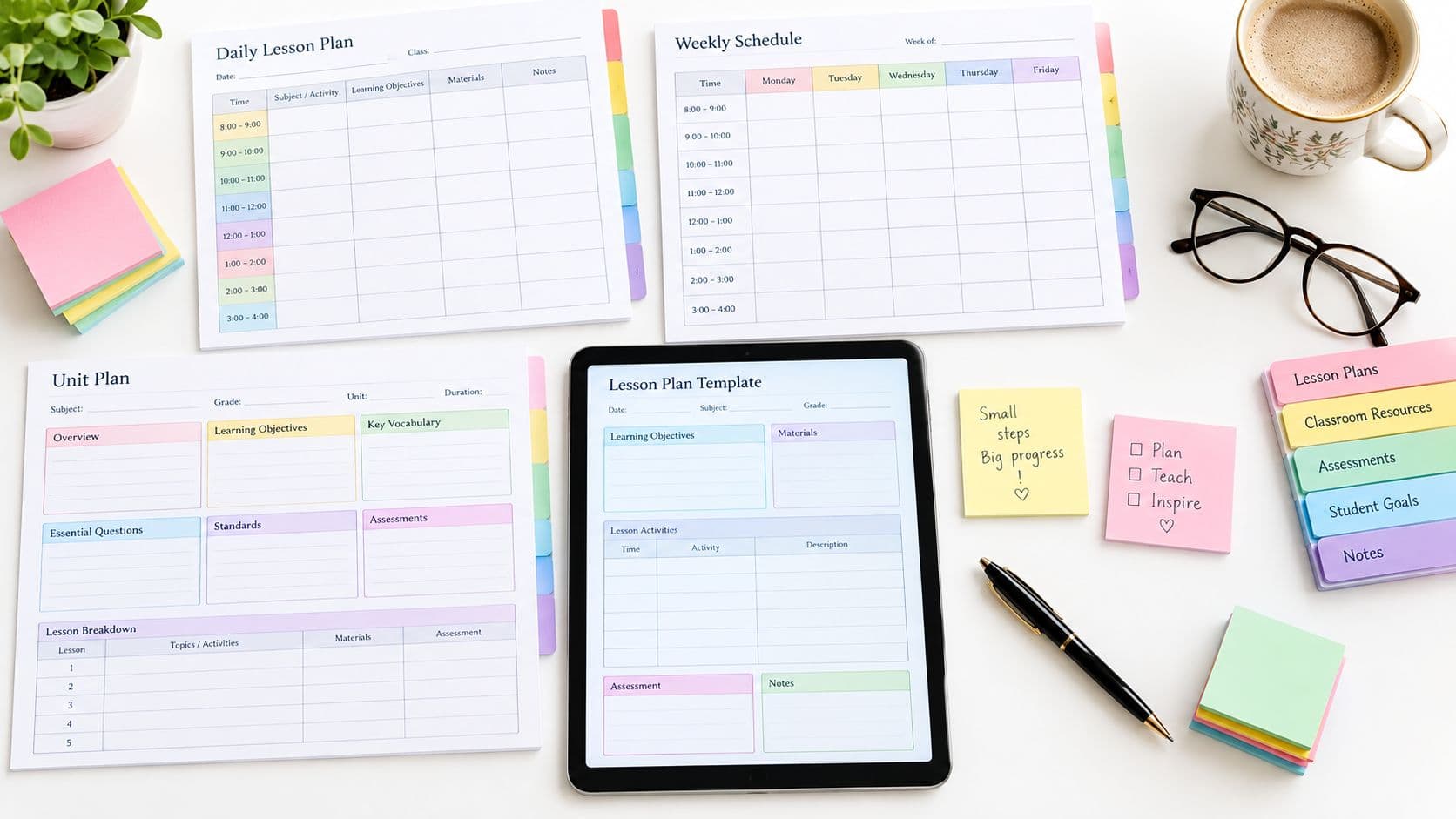
Sunday night can feel calm right up until Monday's timetable shifts. A class moves, an assembly appears, and the lesson you spent an hour polishing suddenly needs to survive in a shorter slot. In that moment, a teaching planner template is only useful if it matches the job you need done, schedule organization, single-lesson content, or the print/PDF workflow. Teacher Planner is the publisher of this article and is included in the comparison. If you want the platform overview, start with the Teacher Planner homepage, and if you want a practical setup walkthrough, the guide on how to use a teacher planner is the right companion.
Here's a plain table you can copy into a document, note app, or paper planner. It's a reusable blank weekly grid, not a downloadable file.
Use that grid for schedule organization, then pair it with a separate content template for one lesson and a separate print workflow for handouts or sub plans. For AI drafting and planbook workflows, a useful comparison starts at teacher planner options and the matching tool pages inside the planner itself.
1. Online Teacher Planner & AI Tools for Teachers
A week can shift fast. A class is shortened, a meeting lands on the timetable, and the lesson you planned needs to be adjusted without rebuilding the whole week. Teacher Planner fits that job when you need schedule organization and fast draft generation in one browser app. It is built as a planbook, not an LMS or gradebook, so it stays focused on lessons, units, standards, and printable resources rather than student submissions or marks.
The practical value is the workflow. You can import a timetable from a photo or PDF, then work in Day, Week, Month, Unit Timeline, or Outline views depending on whether you are planning tomorrow or mapping a term. The platform also includes a digital vs paper teacher planner guide, which helps when a team is deciding whether to stay on paper, go hybrid, or switch to a browser-based setup.
A simple case is a Grade 5 science week with one assembly and one shortened period. Import the weekly grid, place the lessons in sequence, then use Bump Forward when Friday disappears. The lesson order stays intact, which matters when the week changes and the schedule still has to hold together. Bump Forward keeps the sequence intact, which pairs well with scheduling that syncs with billing when a studio or tutoring side also needs admin support.
Practical rule: use the planbook for sequence, the generators for drafts, and the print tools for finished handouts. Don't let an AI draft skip review just because it looks polished.
What works well
- Lesson drafting: the Lesson Plan Generator, Worksheet Generator, Multiple Choice Quiz Generator, Text Rewriter, and Writing Feedback tools all produce editable drafts.
- Printable planning: Classic, Minimal, and Cards templates support different handout styles.
- Schedule recovery: Bump Forward helps preserve lesson order after cancellations or assemblies.
What doesn't
- No LMS replacement: grades and student submissions live elsewhere.
- Import limits: fixed weekly grids and plain lists are the supported timetable inputs, not A/B rotations or whole-school import.
- AI limits remain: AI tools are available on all account tiers with generation limits.
If your week changes often and you draft materials alongside the plan, this is the closest fit of the ten. Website: teacherplanner.ai
2. Planbook
Planbook fits teachers who want a traditional planbook feel in a web app. The layout follows the way many schools already organize planning, with day, week, and month views, standards tagging, attachments, and sharing options. That makes it a practical choice when the job is schedule organization and you need plans ready for colleagues or administrators.
It stays focused on planning, which keeps the interface cleaner. The trade-off is that you are not getting a built-in gradebook or a broader school workflow. For many K-12 classrooms, that is acceptable when the goal is to keep lessons, standards, and attachments in one place without extra tools getting in the way.
Best use case
Planbook works well for a teacher who already plans in weekly blocks and needs to publish or share plans with little setup. It also fits a school routine where the plan itself matters more than a larger classroom system.
For single-lesson content templates, it is less about inventing the lesson and more about recording it clearly. If you already know the outline, Planbook gives you a place to add standards, attach files, and keep revisions visible when the week changes. For a broader planning workflow, the teacher planner walkthrough shows how a blank weekly grid and a filled example can support that process before you commit to a digital system.
A teacher can also use it to share weekly plans with an administrator or team lead without turning the planner into a full LMS. That keeps the workflow simple, but it also means district-level coordination still belongs elsewhere.
Website: Planbook
3. Planboard by Chalk
Planboard is the obvious pick when you want a free digital lesson planner with mobile access. It gives individual teachers a straightforward way to manage lessons, units, and timetables, and it's easier to carry between devices than a paper binder. That makes it useful for teachers who update plans on the move or check tomorrow's schedule from a phone.
Its biggest strength is accessibility. If you want a lesson planner that's easy to open, edit, and sync without a long learning curve, it fits that job well. The downside is that premium and team features sit behind paid tiers, and some interface details reflect its transition under PowerSchool.
For planning teams, the question is whether you need a shared system or just a reliable individual planner. Planboard is fine for the second case. It's less compelling if your district wants deep collaboration and a shared archive across many classrooms.
A simple planner wins when it stays simple. Once the workflow starts requiring approvals, shared archives, and curriculum governance, you're leaving the territory where a lightweight planbook feels effortless.
If your real job is solo lesson planning with a good mobile experience, Planboard is easy to understand and hard to overcomplicate. Website: Planboard by Chalk
4. Common Planner
Common Planner suits teams that plan together, not just side by side. It's built around real-time collaboration, co-teaching, and school-level alignment, so it makes the most sense when more than one adult owns the same instructional sequence. That's useful for grade-level teams, departments, and schools that want an archive of plans instead of a pile of separate documents.
The collaborative angle is what sets it apart. Teachers can work in one planbook, leaders can review alignment, and schools can keep an organized record of what was planned. For co-planning environments, that's a meaningful advantage because the plan is easier to discuss, revise, and save in one place.
The limitation is that this sort of shared system usually asks more of the teacher upfront. There's a learning curve, especially if you're moving from a paper planner or a one-user web app. That's not a flaw, it's the cost of collaboration.
Where it fits
It fits best when planning is part of team practice, not a private prep task. If your school wants visibility across grade bands or departments, the structure is a strength rather than a burden.
For a solo teacher who only needs a weekly grid and a few printable pages, it can feel like too much. For a school that wants alignment and shared ownership, it's closer to the right job.
Website: Common Planner
5. PlanbookEdu
PlanbookEdu is the lightweight choice for teachers who want a quick-to-learn weekly planbook. It's simple, web-based, and built for teachers who value an easy weekly view more than layered school management tools. That makes it useful for newer teachers, substitute-ready planning, or anyone who doesn't want to spend time learning a dense interface.
The free version is a real advantage, especially for teachers who only need the basics. If the workflow is mainly entering class blocks, updating weekly notes, and exporting plans, PlanbookEdu is efficient enough for the job. Premium adds collaboration, Word/PDF export, spell-check, and multiple planbooks, but the core appeal is that the entry point stays small.
Best fit and limits
It's a solid fit for straightforward planning, not for all-in-one classroom administration. That means no heavy feature sprawl, but also no deep curriculum management or broader school coordination.
Use it when your planning question is, “How do I keep next week organized fast?” not, “How do I run every instructional record in one system?” Those are different jobs, and this tool does the first one well.
Website: PlanbookEdu
6. Planbook Plus
Planbook Plus is for teachers who want planning, assessment creation, and grading in one platform. That broad scope makes it different from a basic teaching planner template, because it tries to connect lesson planning with assessments and the gradebook. If you want fewer separate tools and don't mind a deeper interface, it can be efficient.
That breadth is also the main trade-off. Teachers who only need a clean lesson template may find the extra parts unnecessary. But for users who want one place to sketch a lesson, generate an assessment, and track results, the workflow can be convenient.
When to choose it
Choose it when your planning job does not stop at the lesson outline. If you're regularly moving from plan to assessment to grading, the combined environment can save context switching.
A tool like this is less about minimalism and more about consolidation. That's helpful for teachers who prefer one system that can cover several planning tasks, even if the interface asks for a short adjustment period.
Website: Planbook Plus
7. iDoceo
iDoceo is the best fit for teachers who want a powerful offline planner on iPad or Mac. It's especially appealing when internet access isn't reliable or when a teacher wants local control over planning data. The combination of planner, gradebook, attendance, seating charts, and resource management makes it a serious tool for power users.
The offline design changes the feel of the workflow. You're not depending on a browser tab or a district login to get work done, and that can matter for privacy and stability. The trade-off is that the app's depth can feel heavy at first, especially for teachers who just want a simple weekly lesson grid.
Practical downside
It's not the best fit for a school that wants broad, browser-based collaboration. It's built for a more personal, device-centered workflow. If that matches how you plan, the structure is a strength, not a drawback.
The main question is whether you want a local planner with lots of control or a shared web planner with easier collaboration. iDoceo leans hard toward the first.
Website: iDoceo
8. Canva Teacher Planner Templates
Canva works best when the core job is visual customization and printable planner pages. It's not a database-style planbook, but its template library makes it easy to build a clean-looking weekly binder, monthly spread, or lesson page. For teachers who care about presentation and want something that can be shared or printed quickly, that matters.
The browser editor is the selling point. You can change fonts, colors, layouts, and covers without designing from scratch, and eligible K-12 teachers can access premium assets through Canva for Education. That makes it especially useful for people who want one planner to look polished without spending hours formatting.
It's less useful when the planning job involves lesson movement, sequence control, or multi-lesson workflow logic. If your Tuesday disappears and Wednesday needs to move forward, Canva doesn't manage that the way a planbook does.
The weekly planner guide for teachers is a useful reference if you're deciding whether a static template or a more dynamic planbook fits your routine better.
Website: Canva teacher planner templates
9. Microsoft Education Templates
Microsoft Education Templates make sense in schools already living in Microsoft 365. The draw is familiar tools, not novelty. Office.com templates, OneNote Class Notebook structures, Whiteboard canvases, and other education resources let teachers plan inside an ecosystem many schools already use.
That integration is the main reason to pick it. If your staff is already working in OneNote and Teams, a planning template that lives in that environment can reduce friction. It's also flexible enough to be printed or kept digital, which helps teachers who switch between screen and paper.
The downside is that it doesn't behave like a dedicated planbook. You get templates, but not always the planbook-style structure that some teachers want for daily or weekly tracking. Quality also varies by template, so curation matters.
This is a good option when the school has standardized on Microsoft tools and wants planning to sit inside that stack. It's less attractive if you want a purpose-built lesson planner with sequence management.
Website: Microsoft Education Templates
10. SlidesMania School and Edu Planners
SlidesMania is ideal for teachers who want free slide-based planners that can double as printable pages. Because the planners live in Google Slides or PowerPoint, they're easy to duplicate, hyperlink, and export to PDF. That makes them appealing for teachers who like drag-and-drop editing but don't need a database-backed planbook.
The workflow is simple. Open the planner, duplicate pages, fill in your week, and print or keep it digital. That's enough for many classroom binders and lesson notebooks, especially if you like visual control and don't need sequence automation.
The limitation is obvious. It's not built to shift lessons forward automatically or manage multi-teacher collaboration. Every rollover, reschedule, or weekly reset is manual.
Best fit
This is a good match for a teacher who wants a clean, free planner and doesn't mind managing the structure by hand. It's also useful for binders, subject tabs, and visually organized weekly spreads.
If your planning job is mostly presentation and portability, SlidesMania does that well. If your job is dynamic lesson movement, another tool is a better fit.
Website: SlidesMania
Top 10 Teacher Planner Templates: Key Features Comparison
| Product | Core features | AI & content tools | Scheduling & printing | Collaboration & integrations | Price & best for |
|---|---|---|---|---|---|
| Online Teacher Planner & AI Tools for Teachers | Browser planbook with Day/Week/Month, Unit Timeline, Outline, timetable import, Bump Forward | Built-in Lesson Plan, Worksheet, Quiz generators; Text Rewriter; Writing Feedback; save/export | Import timetable from photo/PDF; Bump Forward; Classic/Minimal/Cards templates; Pro PDF options | Browser-based; optional analytics; English/Chinese; not a gradebook/LMS | Free (1 planbook); Pro (7‑day trial); Lifetime one‑time; best for teachers who want AI drafting + printable sub-plans |
| Planbook | Day/Week/Month view, color-coded classes, standards tagging, attachments | No built-in AI | Multiple print/PDF export layouts | Share plans with colleagues, admins, families | Subscription; best for teachers wanting a traditional web planbook |
| Planboard by Chalk | Lesson/unit/timetable planning; mobile apps; standards tagging | No core AI | Good lesson bump/shift; timetable management; exports | Mobile sync (iOS/Android); optional Chalk Gold & district tiers | Core features free; premium/team paid; best for teachers needing mobile sync |
| Common Planner (formerly Common Curriculum) | Real-time co-planning; unit/ curriculum alignment; school archiving | AI-assisted tools to adapt imported curriculum/lesson PDFs | Daily/weekly/monthly tied to units; school views | Strong grade-level/department collaboration and archiving | Paid school plans for full collaboration; best for team/department planning |
| PlanbookEdu | Week-at-a-glance, class blocks, easy exports | No built-in AI | Export to Word/PDF; premium spell-check; multiple planbooks (Premium) | Collaboration/commenting on submitted planbooks | Free + Premium; best for teachers wanting a lightweight, quick-to-learn planner |
| Planbook Plus | Lesson planner + assessment generator + gradebook; lesson library | Assessment generation (not core AI) | Calendar/timeline views; printable timelines | Sharing, standards support, lesson library | Multiple pricing tiers; best for teachers wanting planning + grading in one tool |
| iDoceo | Offline iPad/Mac planner, gradebook, seating chart, reporting | No built-in AI | Exports to PDF/XLS/CSV; timeline views | Local/offline data with integrations (Google Classroom/Moodle/Teams) | One-time purchase; best for offline power users who need privacy and rich features |
| Canva (Teacher Planner Templates) | Thousands of editable planner templates; drag-and-drop editor | No lesson-planning AI (template design tools only) | Export to PDF for print; custom layouts | Team/brand kits; Canva for Education grants free premium assets to eligible K–12 | Free with Edu access; best for highly customizable printable planner pages |
| Microsoft Education Templates | Office/OneNote/Create templates; OneNote Class Notebook structures | No built-in AI for lesson drafting | Use Office/OneNote export/print workflows | Integrates with Microsoft 365, OneNote, Teams | Free templates for Microsoft 365 users; best for schools in the MS ecosystem |
| SlidesMania (School/Edu Planners) | Slide-based planners with hyperlinked navigation; undated pages | No AI; manual content creation | Export to PDF; printable slide pages; manual rollover | Works in Google Slides or PowerPoint; easy duplication | Free downloads; best for teachers who prefer slide-driven printable planners |
Choose the Job First, Then the Template
Start by choosing the job that matters most this term. If you need schedule organization, pick a planbook-style tool that handles weekly movement and revisions cleanly. If you need a single-lesson content template, use a lesson format that separates topic, objective, activities, evidence, and adjustment. If you need the print/PDF workflow, choose a tool that produces clean handouts, sub plans, or binder pages without extra formatting work.
Then shortlist two or three options and check current pricing, limits, and features on the official sites. Don't assume every planner handles the same thing, because some are better for collaboration, some for visuals, and some for quick weekly planning. For a practical comparison of browser-based planning options, the online teacher planner comparison is a useful place to narrow choices before you commit.
Next, copy the blank weekly grid, fill one real week, and test-print one page before the term starts. That small rehearsal exposes problems fast, especially if your schedule changes often or if you need sub-ready notes. It also shows whether the template helps you think clearly or just gives you another blank box to fill.
Finally, treat AI drafts as editable starting points. Review accuracy, age-appropriateness, and standards alignment before saving, copying, downloading, or printing, and remove identifying student information before pasting anything into an AI tool. AI tools are available on all account tiers with generation limits, so the right question isn't whether they're available, it's whether the draft workflow saves time without cutting corners.
If a single browser planbook with AI drafting fits the way you plan each week, try Teacher Planner's free tier, which doesn't require a credit card, and check the current limits first.
Teacher Planner brings the planbook, timetable, lesson drafting, and printable workflow into one browser-based system. If your teaching planner template needs to handle changing schedules without extra retyping, visit Teacher Planner and see whether the free tier fits your weekly routine.